How to Activate Your License Key
Enter your StringLane license key to unlock the full app — one-time purchase, no subscription, your key lives in your OS keychain.
StringLane uses a one-time license key. There's no subscription, no account, and no online check that runs every time you launch. The key is tied to your device and works on macOS, Windows, and Linux.
Where to get a license key
Purchase a license at stringlane.app/buy. Checkout is handled by Creem (our payment processor and merchant of record). Within a couple of minutes of purchase you'll receive an email with your license key. Keep it somewhere safe — you can re-enter it any time if you reinstall the app or move to a new device.
If the key hasn't arrived after ten minutes, check spam first; if it's still missing, email support@stringlane.app with the purchase email address.
Activating from inside the app
You can activate at any time — during the 14-day trial, after the trial expires, or on a fresh install with no trial state at all.
- Open StringLane.
- Click the app icon in the menu bar (macOS) or Help → About (Windows / Linux) to open the About dialog.
- Click Enter license key. This brings up the License Gate with a Cancel option that returns you to the editor.
- Paste your key into the field.
- Click Activate. StringLane contacts the licensing service to verify the key, saves it to your OS keychain, and switches the app into licensed state.
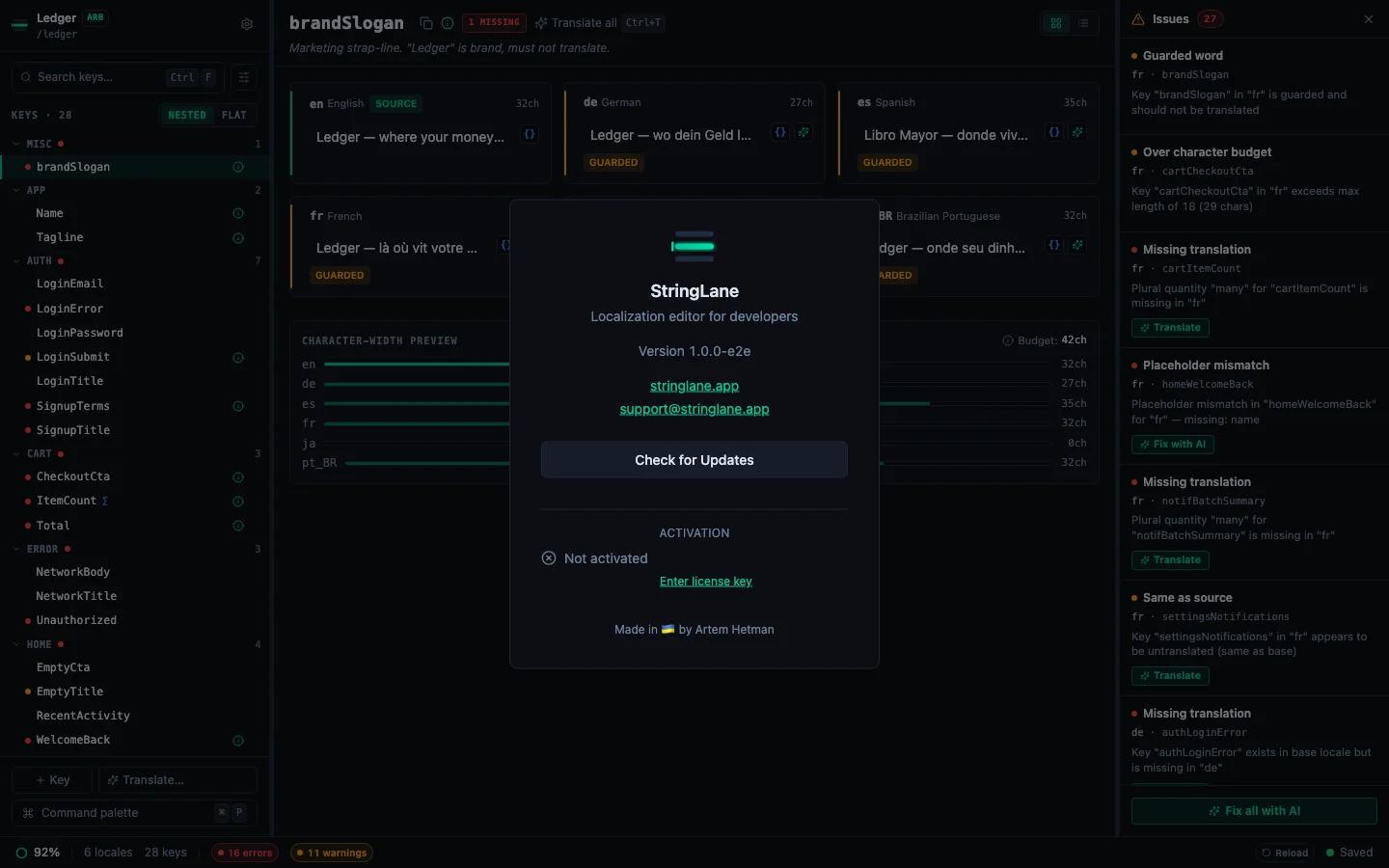
If you reach StringLane via the cold-launch License Gate (no trial running, no license stored) the same form appears immediately — paste your key, hit Activate, and you're in.
An internet connection is required for activation. Once activated, the license is stored locally in your OS keychain and StringLane verifies it on launch — you can use the app offline indefinitely.
What activation unlocks
The trial already gives you the full feature set for 14 days. Activation is what extends that access beyond day 14.
| Capability | Trial | Licensed |
|---|---|---|
| Unified List View editor + sidebar grouping | ✓ | ✓ |
All five formats (ARB, .strings, .xcstrings, Android XML, i18next JSON) | ✓ | ✓ |
| Validation (Missing, Same, Param, Length, ICU, Guarded, Malformed) | ✓ | ✓ |
| Issues Panel + Fix with AI / Fix all with AI | ✓ | ✓ |
| Per-cell, per-key, and bulk AI translation across all 8 providers | ✓ | ✓ |
| Unlimited keys, locales, and projects | ✓ | ✓ |
| Use after the 14-day trial window | — | ✓ |
| All future updates within the major version | — | ✓ |
Where your key is stored
StringLane stores your license key in the platform-native keychain — never in a plain-text file on disk and never in stringlane.yaml.
- macOS — signed release builds use the data-protection keychain; unsigned dev builds fall back to the login keychain so developer activation works during local testing.
- Windows — Windows Credential Manager.
- Linux — Secret Service (libsecret), which most desktop environments expose through GNOME Keyring or KWallet.
Troubleshooting
"Invalid key" error. License keys are case-sensitive and include dashes — copy and paste from your purchase email rather than typing manually.
"Licensing service is having trouble" message. Our licensing service is briefly unreachable. Try again in a few minutes. If the message persists, email support@stringlane.app — your purchase is safe regardless.
"Could not connect. Check your internet connection." Genuine offline situation. Activation needs to reach the licensing service once; once that succeeds, you can work offline.
Moving to a new device. Open About → Deactivate on the old machine first, then activate on the new one. If the old device is gone or broken, contact support with your purchase email and we'll free the activation.
Refunds
StringLane comes with a 30-day money-back refund policy — if it doesn't fit your workflow, email support within 30 days of purchase and we'll process a full refund. The license key becomes inactive after a refund; the app reverts to trial mode if the 14-day trial period still has time remaining on that device.