Getting Started with StringLane
Download, install, and make your first translation edit in under 10 minutes.
StringLane opens your localization folder and gives you a live side-by-side view of every language. Changes write directly to your source files — no import, no export, no round trips.
This tutorial takes you from a fresh install to your first committed translation in about 10 minutes.
Step 1: Download and install
Download the latest StringLane .dmg from stringlane.app/download. Open the disk image, drag StringLane to your Applications folder, and launch it.
On first launch you may see a Gatekeeper prompt. Open System Settings → Privacy & Security and click Open Anyway, or right-click the app and choose Open.
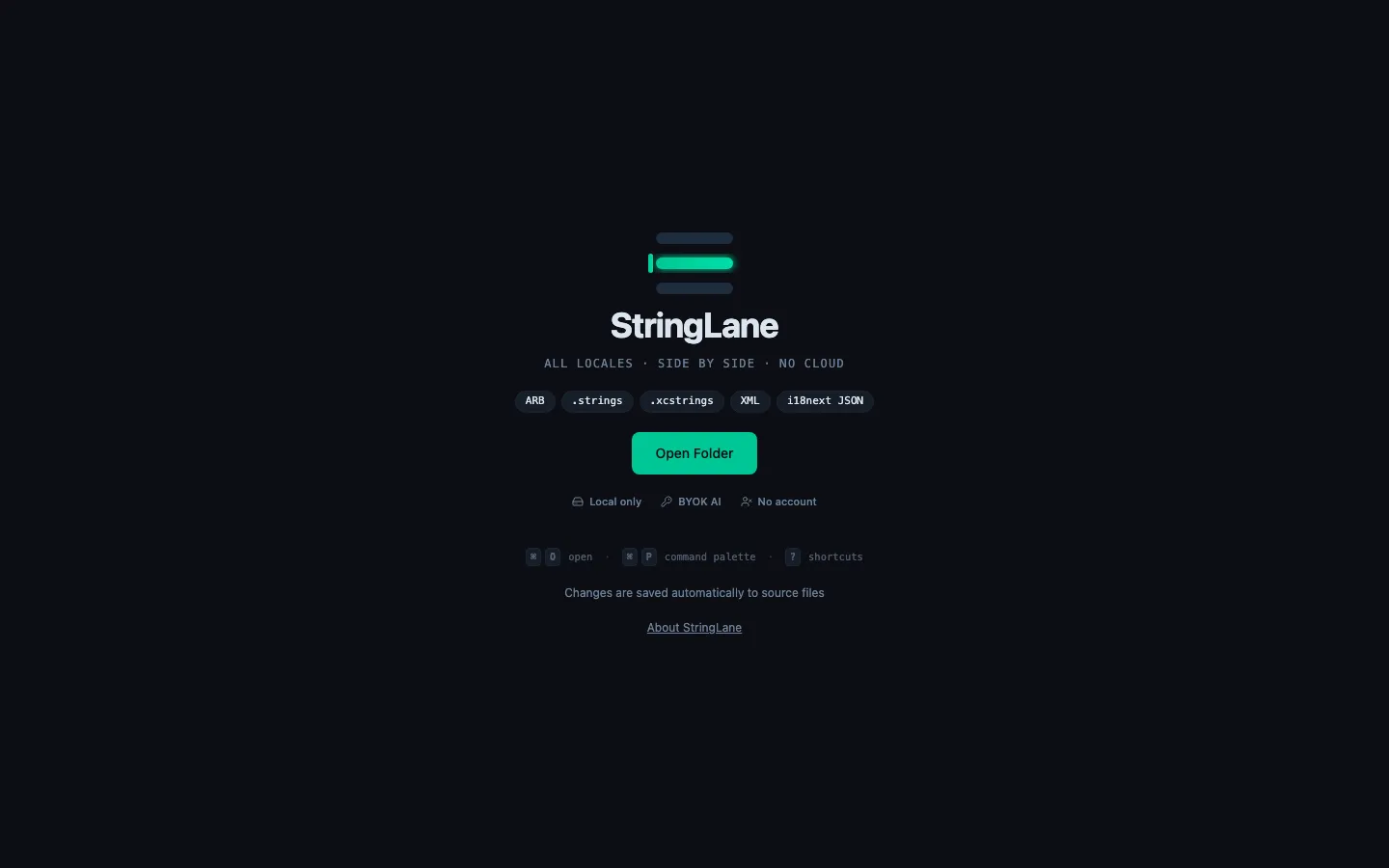
The Welcome screen shows the formats StringLane supports — ARB · .strings · .xcstrings · Android XML · i18next JSON — along with the core guarantees: Local only · BYOK AI · No account.
Step 2: Open your localization folder
StringLane works directly with your project's localization files. You don't need to move anything.
Three ways to open a project:
- Drag your folder onto the StringLane window — drop any folder that contains ARB,
.strings, Android XML, i18next JSON, or xcstrings. - ⌘O (File → Open Folder) — navigate to your project root or its localization subdirectory.
- ⌘P → Open folder… — via the command palette.
StringLane scans the folder recursively and loads all locale files it finds. The project name (derived from the folder name) appears in the sidebar header.
Step 3: Tour the interface
Once a project loads, you land in the unified editor: a key sidebar on the left + per-key detail pane on the right.
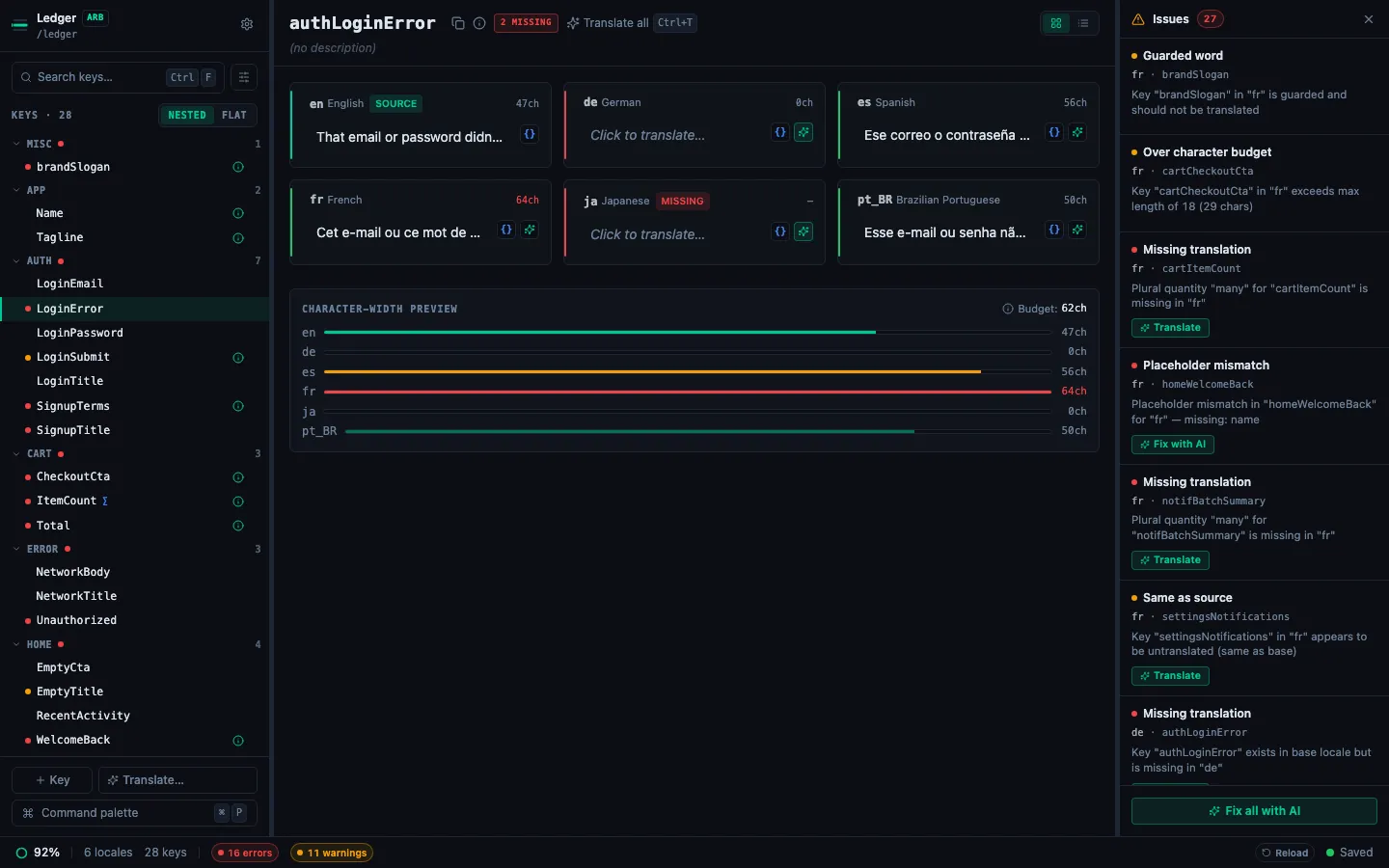
- Sidebar (280px, left) — every key in your project, grouped by namespace (the segment before
.or_). Search, filter by locale or Issues-only, and a ⌘P Command Palette launcher at the bottom. - Detail pane — the key name + chips + Grid/List toggle; below, every locale side-by-side with its value, AI translate button, and validation rail.
- Issues panel (right rail or bottom drawer — your choice) — auto-opens when the project has any validation issues. Each row jumps you to the offending cell.
- Status bar (bottom) — completion ring, error / warning chips, save indicator with "Saved · Ns ago" recency.
Step 4: Edit a translation
Click any locale's value in the detail pane to edit it inline. Type your translation, then press:
- Enter — confirm and move to the next locale
- Tab — confirm and move to the next locale
- Escape — cancel and restore the original value
- ⌘Z — undo changes in the current cell
The edit is saved automatically the moment you leave the cell — no Save button, no confirmation dialog. StringLane writes directly to the source file on disk; the status bar shows "Saved · just now".
Step 5: Verify auto-save
After editing, open your localization file in any text editor (VS Code, Xcode, etc.). The change is already there. StringLane never buffers — every confirmed edit lands in the file immediately.
If you run flutter gen-l10n or rebuild your app right now, the new translation is live.
Step 6: Speed up with the command palette
Press ⌘P to open the command palette — one searchable menu for every action in the app. Type to fuzzy-search actions and keys across the project.
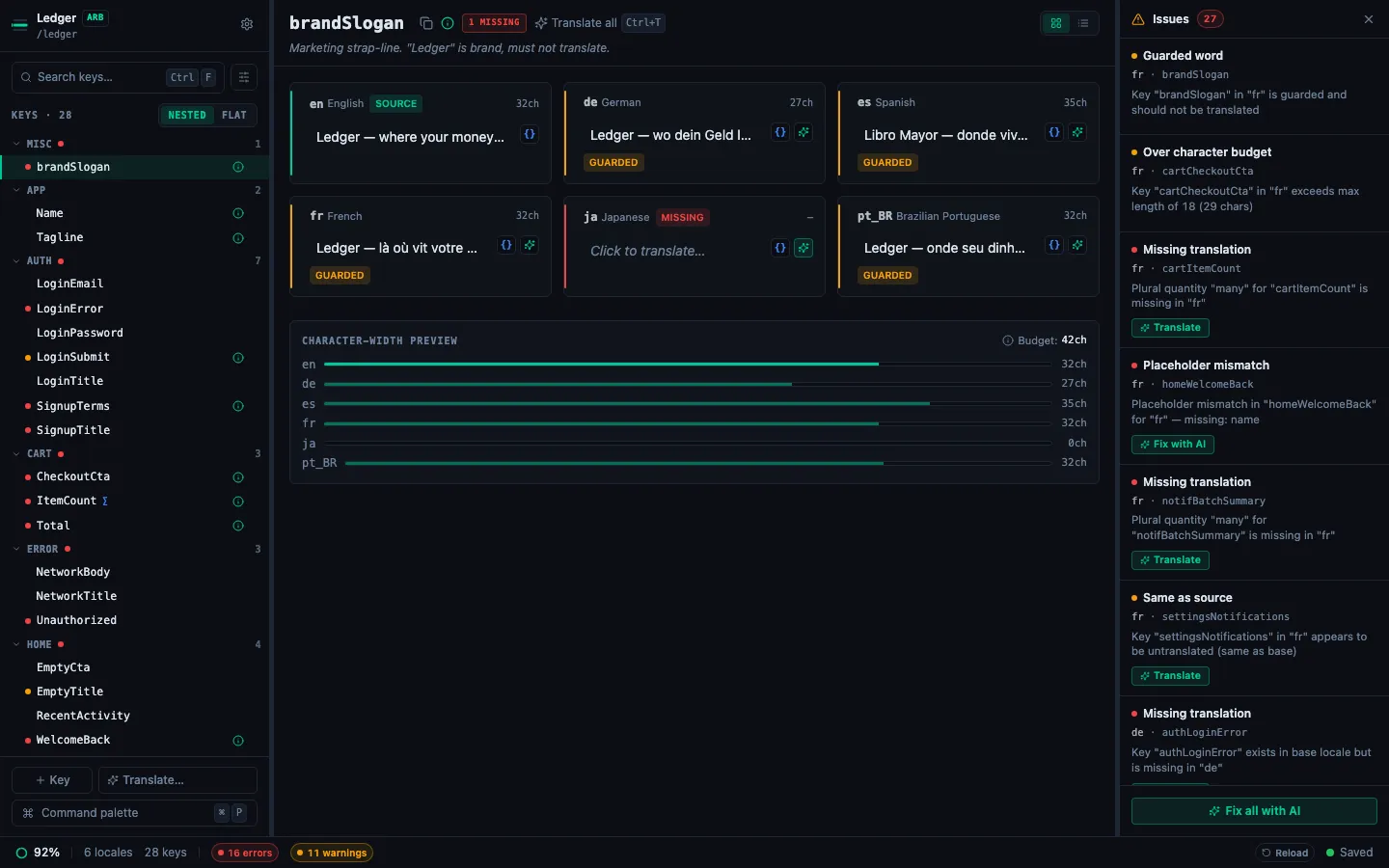
The palette is the fastest path to:
- Add key… — create a new translation key
- Translate all missing with AI — one-shot fill every gap across every locale
- Jump to key — type a key name or value fragment to teleport
- Toggle Issues panel, theme switch, open Settings
What's next
- Use the List View editor — the unified sidebar + detail-pane surface you just saw, in depth.
- Set Up AI Translation in 5 Minutes — let the model fill in missing translations.
- Translate all missing — the batch flow when you have gaps across multiple locales.
- How to Add a New Locale — create a new language column from a preset.
- How to Read Validation Badges — understand the rail colors and loud pills.
- Customize keybindings — rebind any in-app shortcut.