How to Add a New Locale
Create a new language column in StringLane — from a preset or a custom locale code.
Adding a locale creates a new localization file in your project folder and adds a column to the editor.
Steps
-
With a project open, click the + Add Locale button in the toolbar or the locale panel.
-
A search sheet appears. You can:
- Search by name — type "French", "Japanese", "Brazilian Portuguese"
- Type a locale code directly —
fr,ja,pt-BR - Browse presets — scroll through 70+ language and region presets
-
Select the locale you want and click Add.
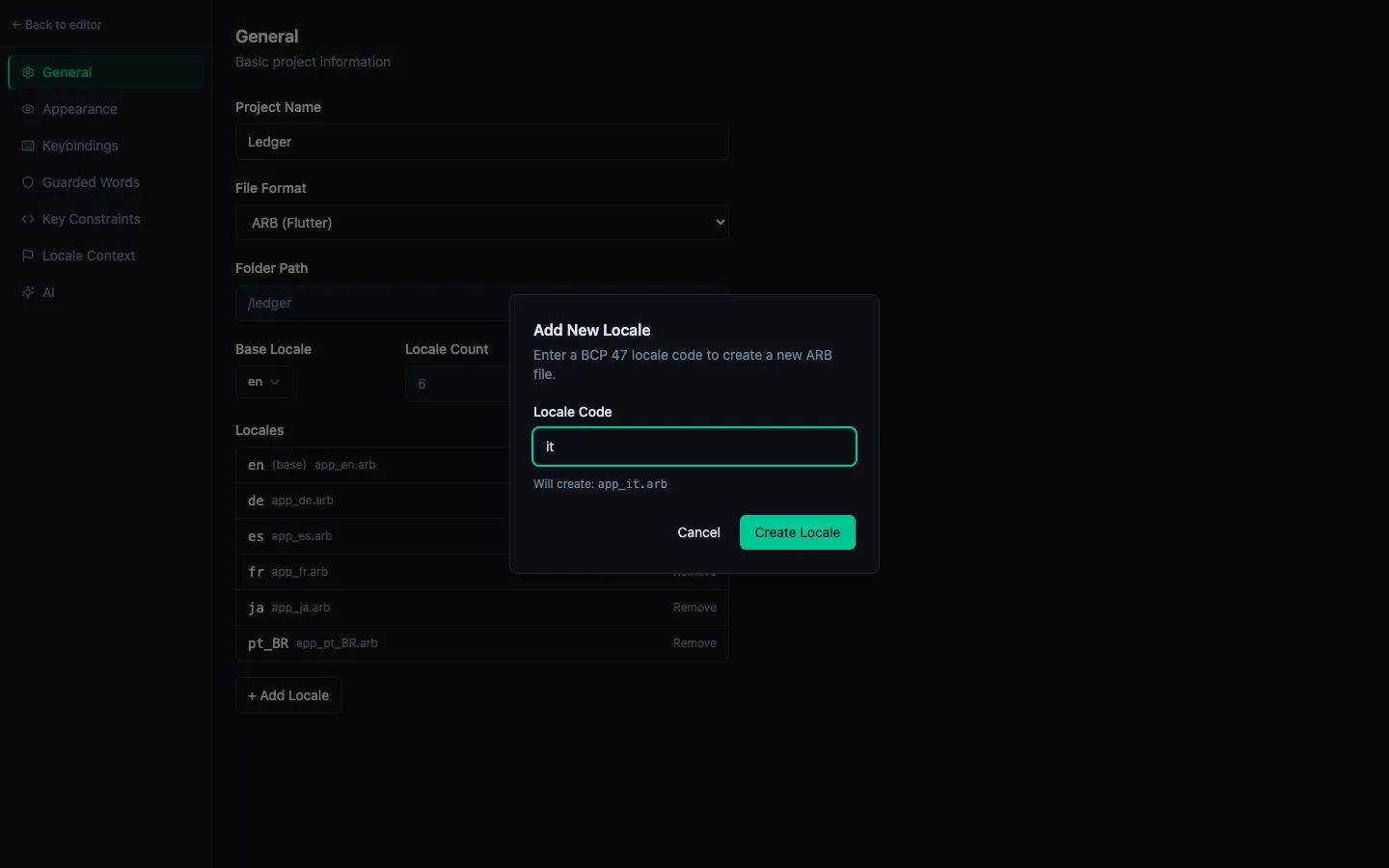
What gets created
StringLane creates a new localization file in your project using the same format and naming convention as your existing files:
- ARB:
app_fr.arbalongside your existingapp_en.arb - iOS .strings:
fr.lproj/Localizable.strings - Android XML:
res/values-fr/strings.xml - i18next JSON:
fr/translation.json
The new file is empty — all keys show the red Missing badge in the new column.
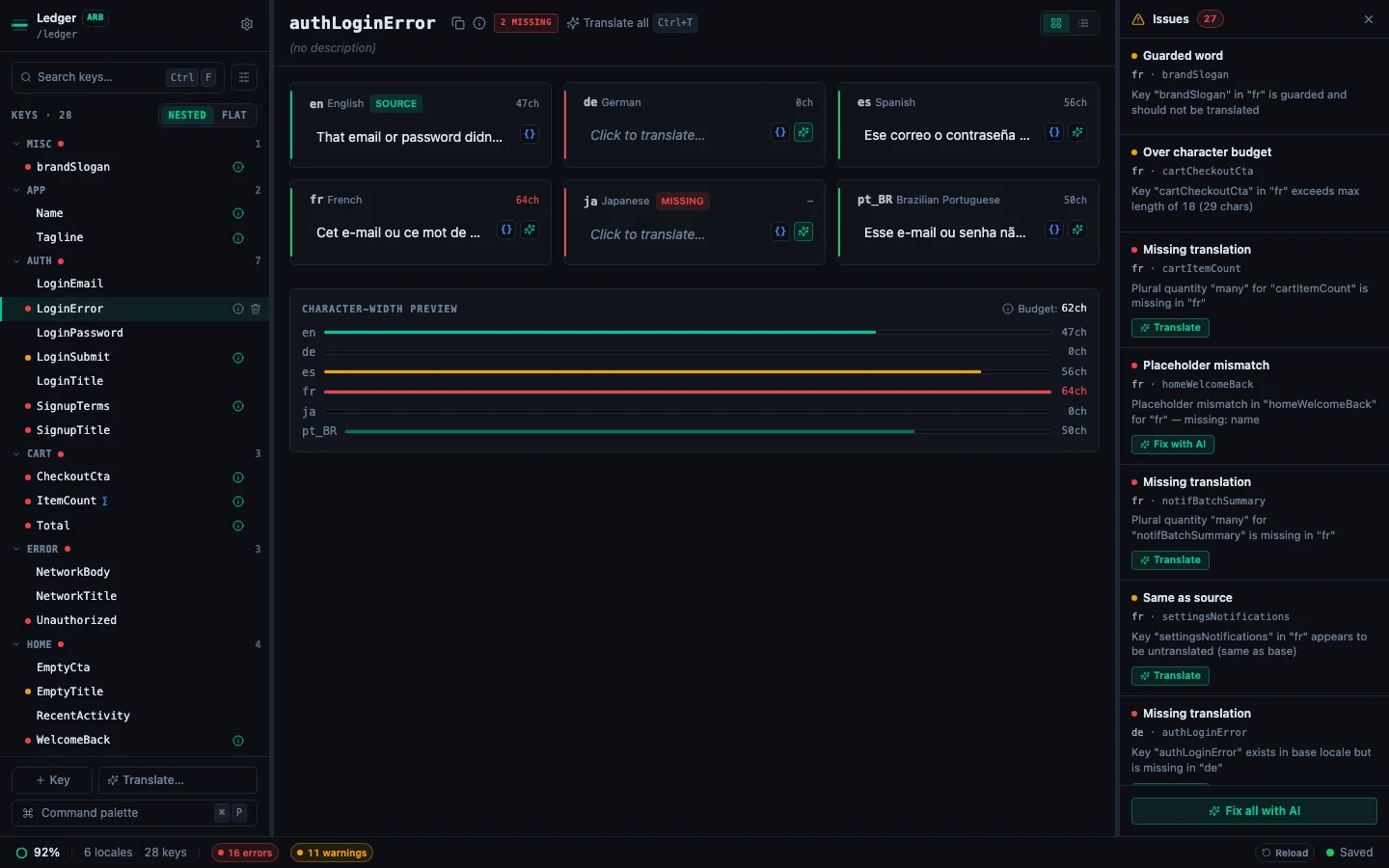
After adding a locale
From here you can:
- Bulk translate with AI — click ✨ N in the column header to fill all missing keys automatically. See Set Up AI Translation.
- Translate manually — click each cell and type your translation.
- Check coverage — use the Missing filter in the search bar to see only untranslated keys.