Localize Your Flutter App End to End
A complete workflow from Flutter ARB setup through AI translation, validation, and running flutter gen-l10n.
This tutorial walks through a real localization workflow for a Flutter app: setting up ARB files, opening the project in StringLane, adding new locales, translating with AI, fixing validation errors, and generating the Dart code that Flutter needs.
Prerequisites
Your Flutter app should already have flutter_localizations set up. If not, add it first:
# pubspec.yaml
dependencies:
  flutter_localizations:
    sdk: flutter
  intl: any
And configure l10n.yaml:
# l10n.yaml
arb-dir: lib/l10n
template-arb-file: app_en.arb
output-localization-file: app_localizations.dart
Run flutter gen-l10n once to generate the initial Dart output. You should now have a lib/l10n/ directory containing at least app_en.arb.
Step 1: Open the project in StringLane
Drag your Flutter project root (or the lib/l10n/ folder) onto StringLane, or use File → Open Folder.
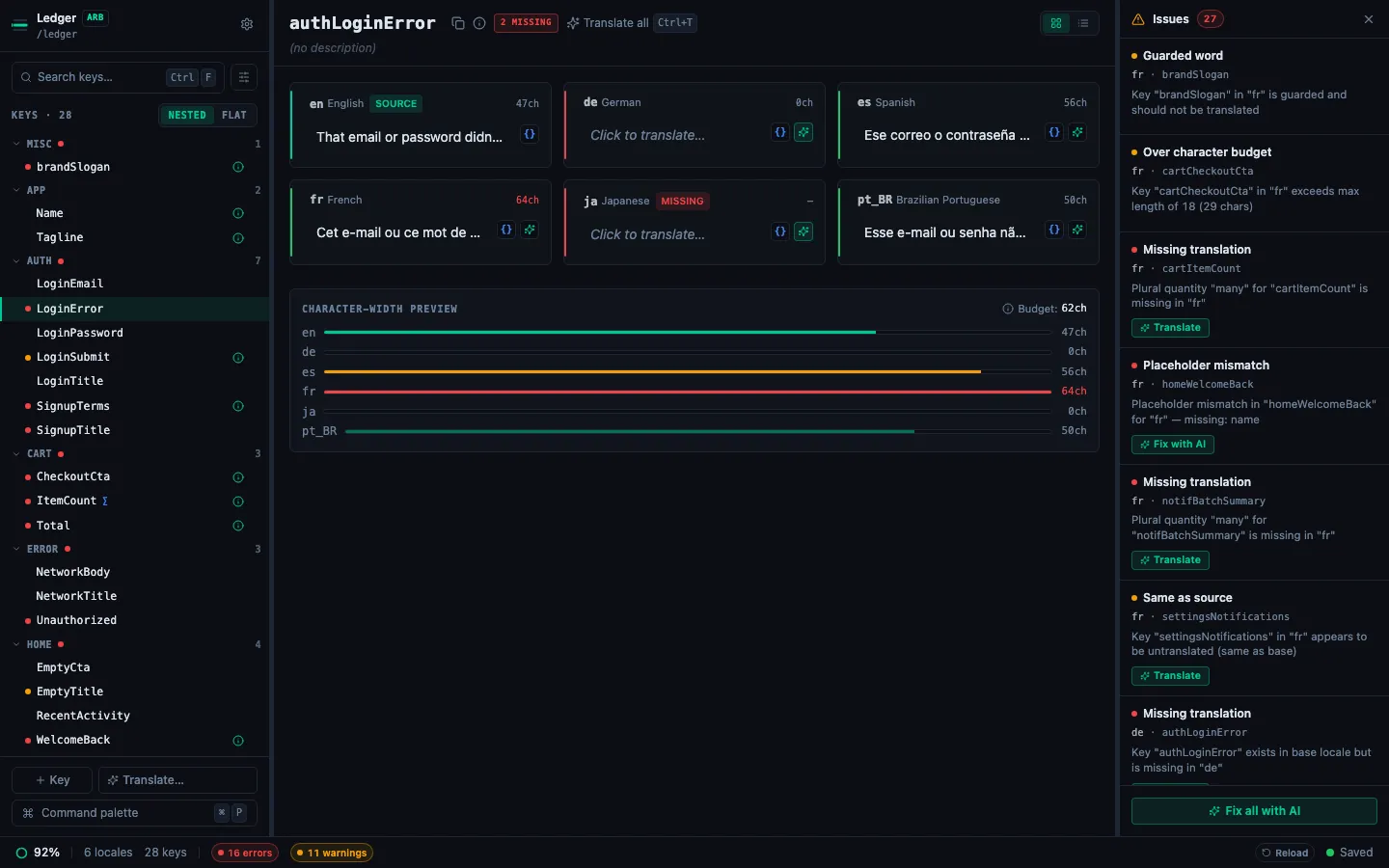
StringLane finds all app_*.arb files and loads them as locale rows. The sidebar lists every key (grouped by namespace), and the detail pane on the right shows every locale's value for the active key. If only app_en.arb exists, you'll see one locale row in the detail pane.
Step 2: Add locales using presets
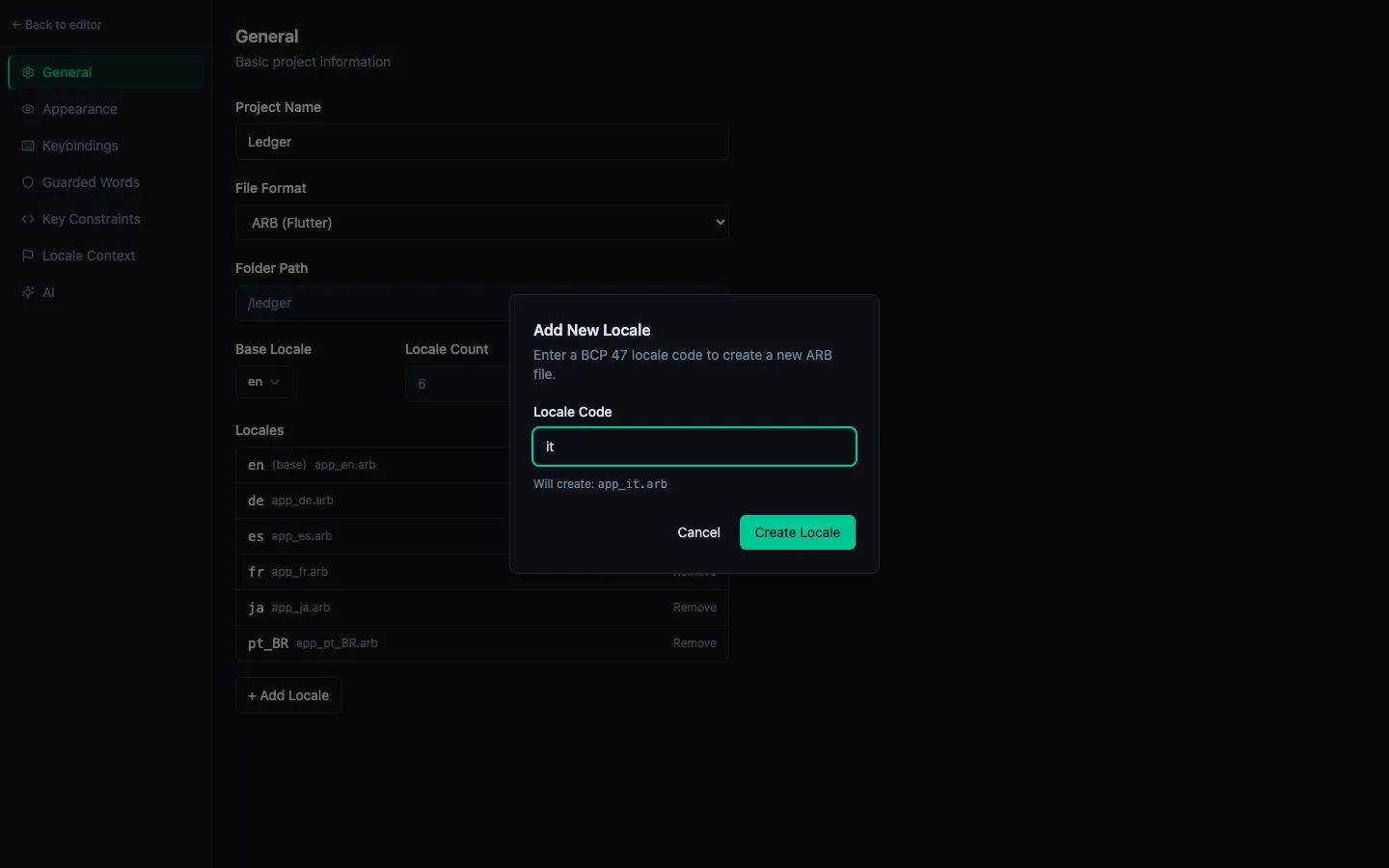
Click Add Locale (+ button in the locale panel). A search field appears with 70+ language and region presets.
Search for "Spanish" and select es — Spanish. StringLane creates lib/l10n/app_es.arb in your project with an empty locale file. The Spanish locale appears in the detail pane — every cell shows the red Missing badge.
Repeat for any other languages you need. Common additions:
fr— Frenchde— Germanja— Japanesept-BR— Brazilian Portuguesezh— Chinese (Simplified)
Step 3: Configure AI translation context
Before bulk-translating, add product context so the AI understands your app:
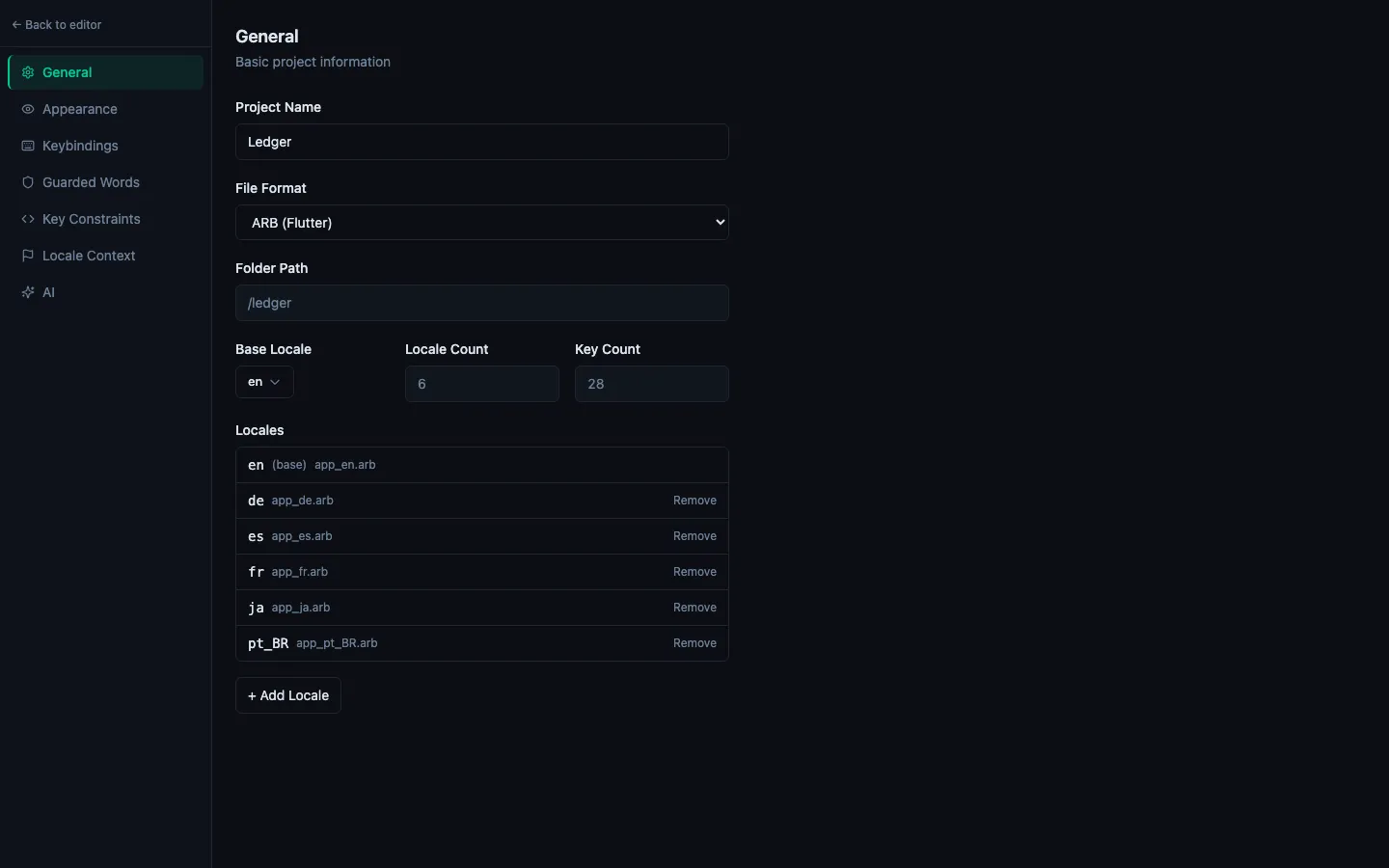
- Open Project Settings → AI (⌘,)
- Select a provider and enter your API key if you haven't already
- In the Product context field, write 2–3 sentences: what the app does, who uses it, what tone to use
- Add any guarded words — your app name, brand terms, technical terms that must not be translated
Step 4: Bulk translate each locale
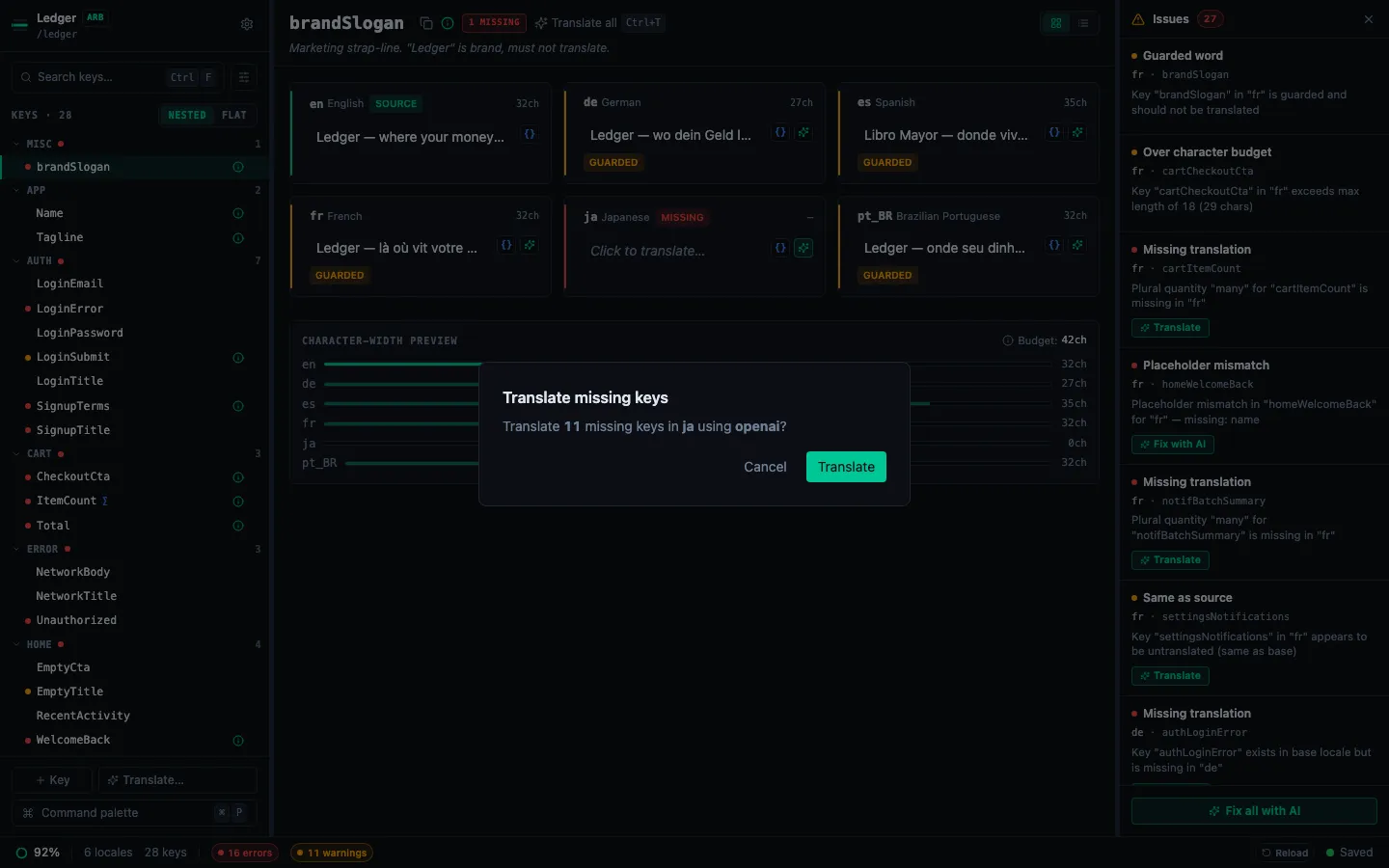
Click the ✨ N button in the Spanish column header — N is the count of missing keys. A dialog confirms the count and lets you start.
StringLane translates keys one at a time. For a typical app with 50–200 keys, this takes 30–90 seconds. You can cancel mid-run without losing progress — completed translations are already saved.
Repeat for each additional locale.
Step 5: Review and fix validation errors
After bulk translation, open the Issues Panel (⌘J) to see every remaining problem in one list:
- Missing (red): key was not translated — can happen if the API call failed. Click ✨ on the row to retry individually.
- Param (red): a placeholder like
{userName}is in the English source but missing from the translation. Click Fix param on the row to restore it. - ICU (red): the model produced malformed ICU syntax. Click Fix with AI on the row to repair the structure while preserving your text.
- Same (yellow): the translation is identical to English — often correct for proper nouns, but worth checking.
The footer Fix all with AI sweeps every AI-addressable row in one pass.
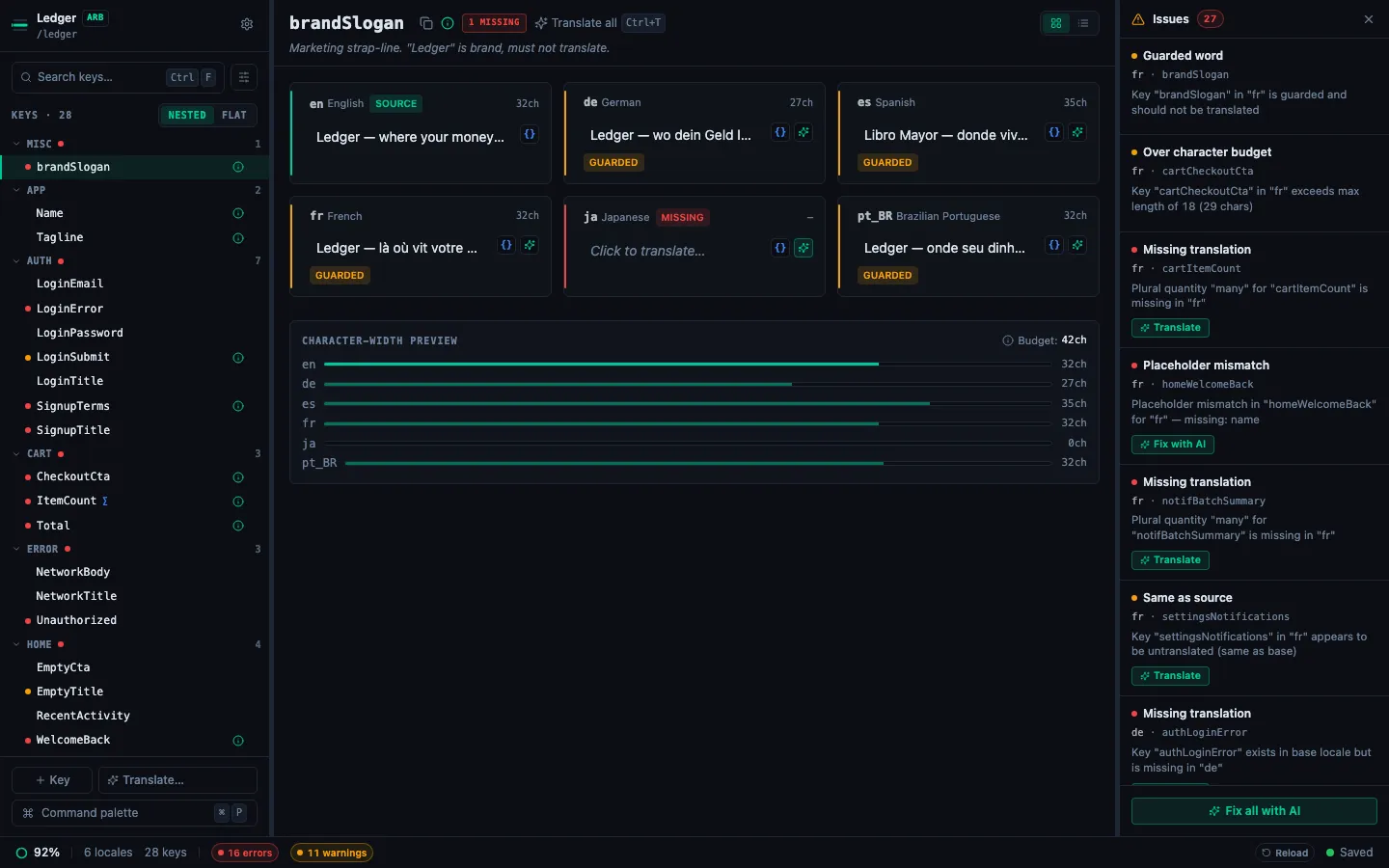
For a fresh app with standard strings, expect mostly clean results with a few Param badges on strings with variables.
Step 6: Save and regenerate
StringLane auto-saves every edit. Your lib/l10n/app_es.arb (and other locale files) are already updated on disk.
Run Flutter's localization generator:
flutter gen-l10n
Or if you have generate: true in l10n.yaml, it runs automatically on flutter run and flutter build.
Step 7: Test in the app
Run your app with a specific locale to verify:
# Flutter run with a specific device locale
flutter run --dart-define=flutter.locale=es
Or change the device locale in Settings and re-launch the app.
If you see any strings falling back to English in the running app, check lib/l10n/app_es.arb — the key might have a typo or the file might have a JSON syntax error (StringLane prevents this, but worth checking).
Updating translations over time
When you add new keys to app_en.arb:
- Open the project in StringLane — new keys show Missing in all target locales
- Bulk translate as before
- Run
flutter gen-l10n
StringLane only touches keys you've edited — existing translations for unchanged keys are untouched.