How to Search and Filter Translations
Find keys by name or content, filter to issues only, or show only missing translations for a specific locale.
The search bar filters the key list in real time. You can combine a keyword search with the Issues and Missing filters to quickly find exactly what needs attention.
Opening the search bar
- Click the search bar at the top of the editor
- Press ⌘F from anywhere in the editor — the search bar receives focus immediately
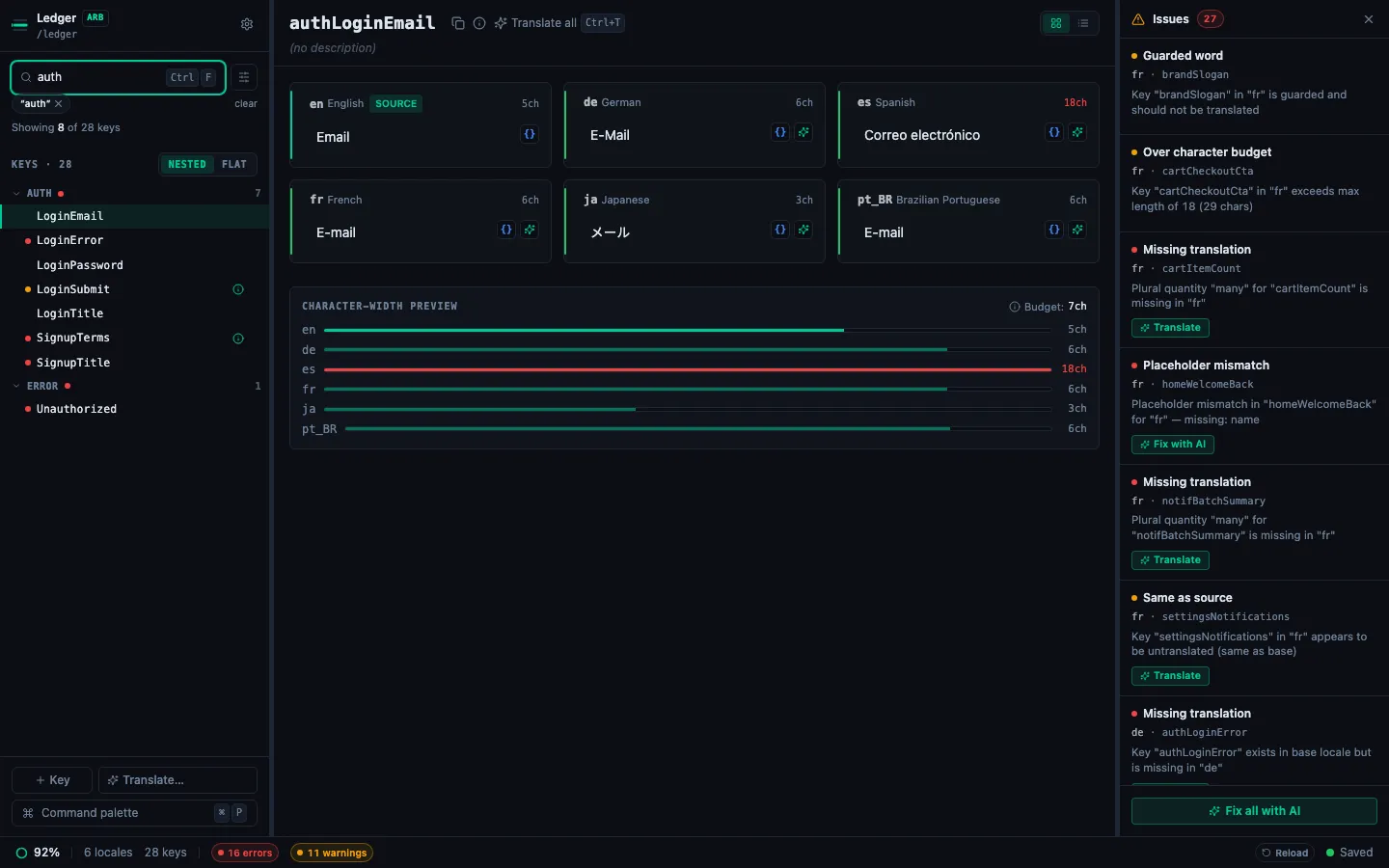
Searching by keyword
Type any string in the search bar. StringLane filters to keys where:
- The key name contains the search term (e.g. searching
buttonmatchessubmitButton,cancelButton) - Any translation value in any locale contains the search term
Matches are case-insensitive. Clear the search field (or press Escape) to show all keys again.
Issues filter
Click the Issues toggle (shield icon, or press ⌘⇧I) to show only keys that have at least one validation badge in any locale. This is the fastest way to find everything that needs fixing.
Issues filter works alongside keyword search — you can search for "login" and filter to issues at the same time.
Missing filter
The Missing dropdown lets you filter to keys that are missing a translation in a specific locale. Select a locale from the dropdown and only keys with a Missing badge in that locale appear.
This is useful when onboarding a new locale — you can see exactly which keys still need to be added.
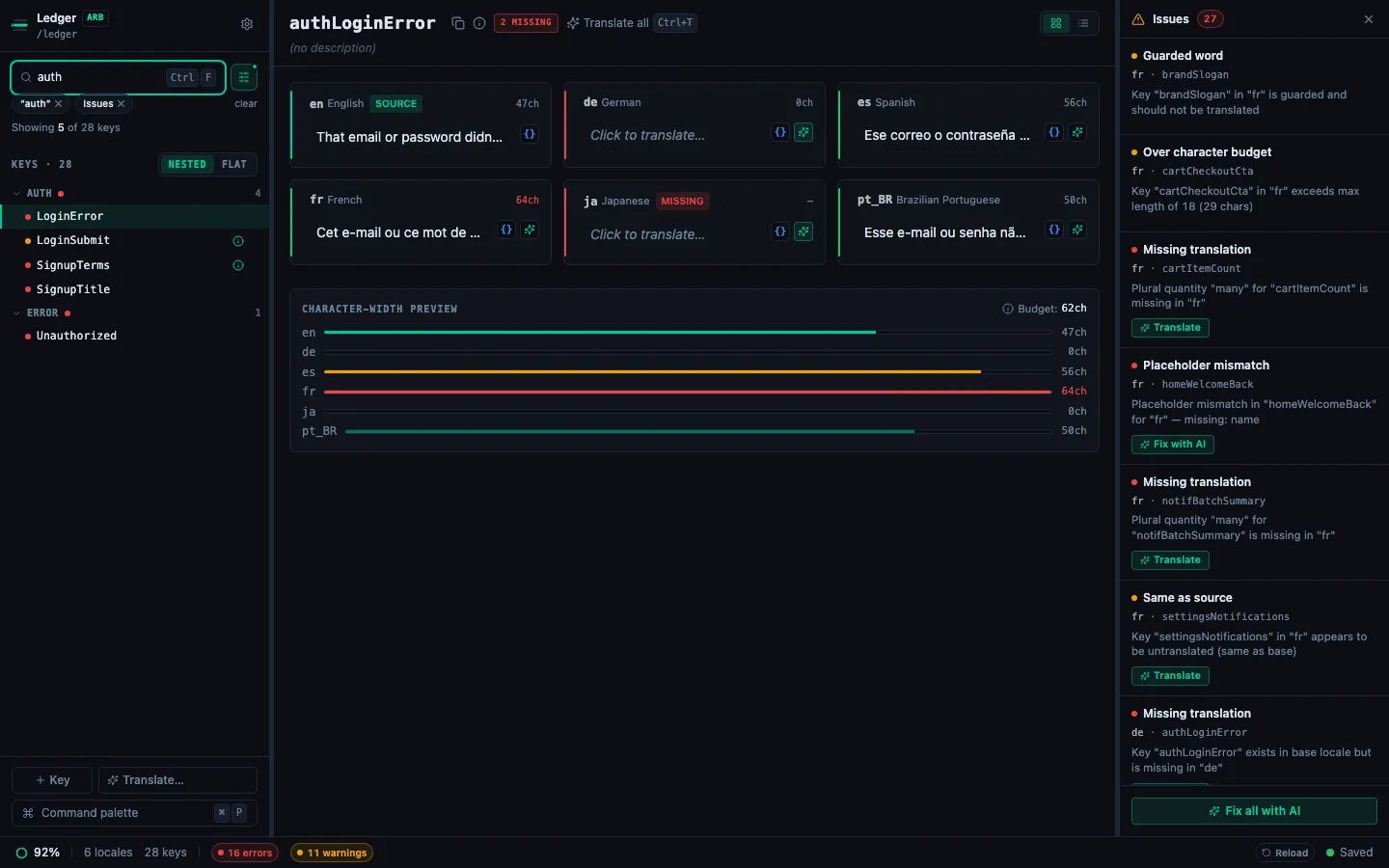
Combining filters
All three filters stack:
- Keyword:
error - Issues: on
- Missing locale: French
Result: keys whose name or value contains "error", AND which have a validation issue, AND which are missing in French. This is a very specific scope — useful for targeted review sessions.
CMD+F shortcut
⌘F focuses the search bar from anywhere in StringLane — even when a cell is in edit mode (Escape first, then ⌘F). This matches the standard browser search shortcut and makes searching fast.