How to Use the Issues Panel
Press ⌘J to open one panel listing every validation problem across the project — click to jump, fix per row, or sweep all with AI.
The Issues Panel is the project-wide view of every validation problem StringLane has detected. Press ⌘J (or Ctrl+J on Windows/Linux) to open it — once a project has any issues, it auto-opens on first load too.
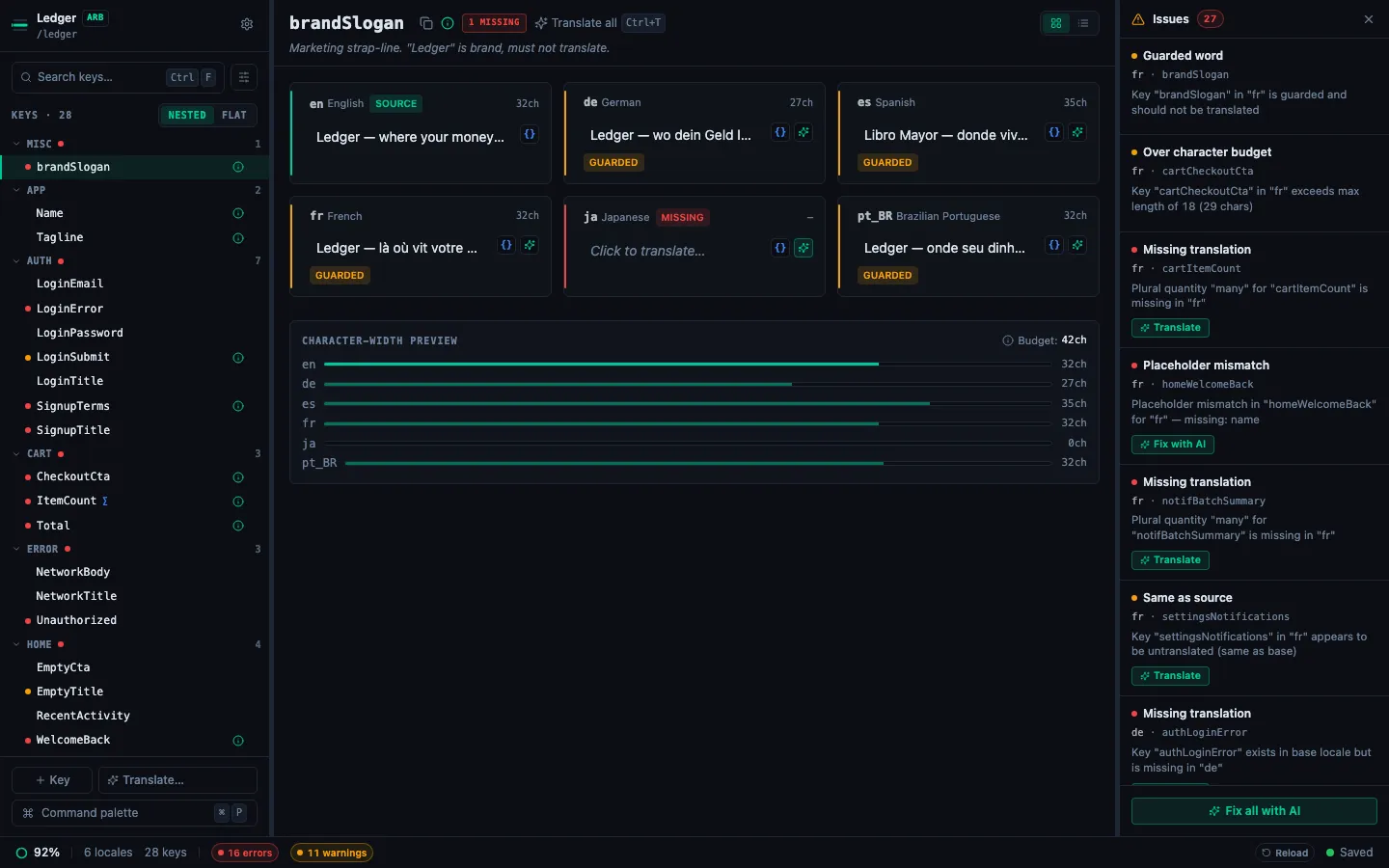
What you see
One row per (locale, key) issue:
- Severity dot — red for errors, amber for warnings.
- Title — short summary ("Missing translation", "Placeholder mismatch", "Guarded word", "Malformed placeholder", "ICU parse error").
- Locale · key — quick context for which file and which key the row belongs to.
- Per-row action — ✨ Auto-translate, Fix param, Fix syntax, or Fix with AI depending on the issue type.
The panel header shows a total count badge (Issues · N); the footer shows Fix all with AI when there's at least one AI-addressable row.
What you can do
| Action | How |
|---|---|
| Jump the editor to that key | Click the row |
| Auto-translate a Missing or Same-as-source row | Click ✨ Auto-translate on the row |
| Fix a placeholder mismatch in place | Click Fix param |
Fix a malformed {placeholder} in place | Click Fix syntax |
| Fix an ICU parse error or missing plural category | Click Fix with AI |
| Sweep every AI-addressable issue | Click footer Fix all with AI |
| Toggle the panel | ⌘J |
| Switch dock between right rail and bottom drawer | Command Palette → "Toggle Issues panel orientation" |
Fix-with-AI: what it does and doesn't change
Fix-with-AI is structural: the AI corrects the broken syntax (an unclosed brace, a missing other plural category, a renamed {name} placeholder) and preserves the rest of your translation. It does not retranslate. If a slot is genuinely empty, use ✨ Auto-translate instead — that's what fills missing translations.
The bulk Fix all with AI button at the footer applies the same logic across every affected row in one pass. Like the Command Palette's "Translate all missing", it batches per locale and per issue class for speed; failures on one bucket don't stop the others.
Right rail vs bottom drawer
Pick the orientation that fits your screen:
- Right rail (default, 280px wide) — best on wide monitors. Drag the divider to resize.
- Bottom drawer (220px tall) — best on narrow laptops; gives the detail pane more horizontal space. Drag the top edge to resize.
Toggle from the Command Palette: type panel orientation and pick "Toggle Issues panel orientation". State persists per project.
Tips
- The panel defaults open only when the project actually has issues, so clean projects don't see empty chrome.
- The status-bar error and warning chips ("3 errors", "5 warnings") toggle the panel on click.
- The sidebar's Issues only filter narrows the key list by keys that have any issue. The Issues Panel lists each individual (locale, issue) row — use whichever fits the task.
- The
⌘Jshortcut is rebindable under Customize keybindings.
Related
- How to Read Validation Badges — what each issue type means.
- How to Fix Placeholder Mismatches — the per-row "Fix param" action.
- How to Translate All Missing Cells at Once — the engine behind "Fix all with AI" for missing keys.
- Working with ICU Plurals and Select Forms — what triggers the ICU parse-error rows.