How to Translate Individual Keys
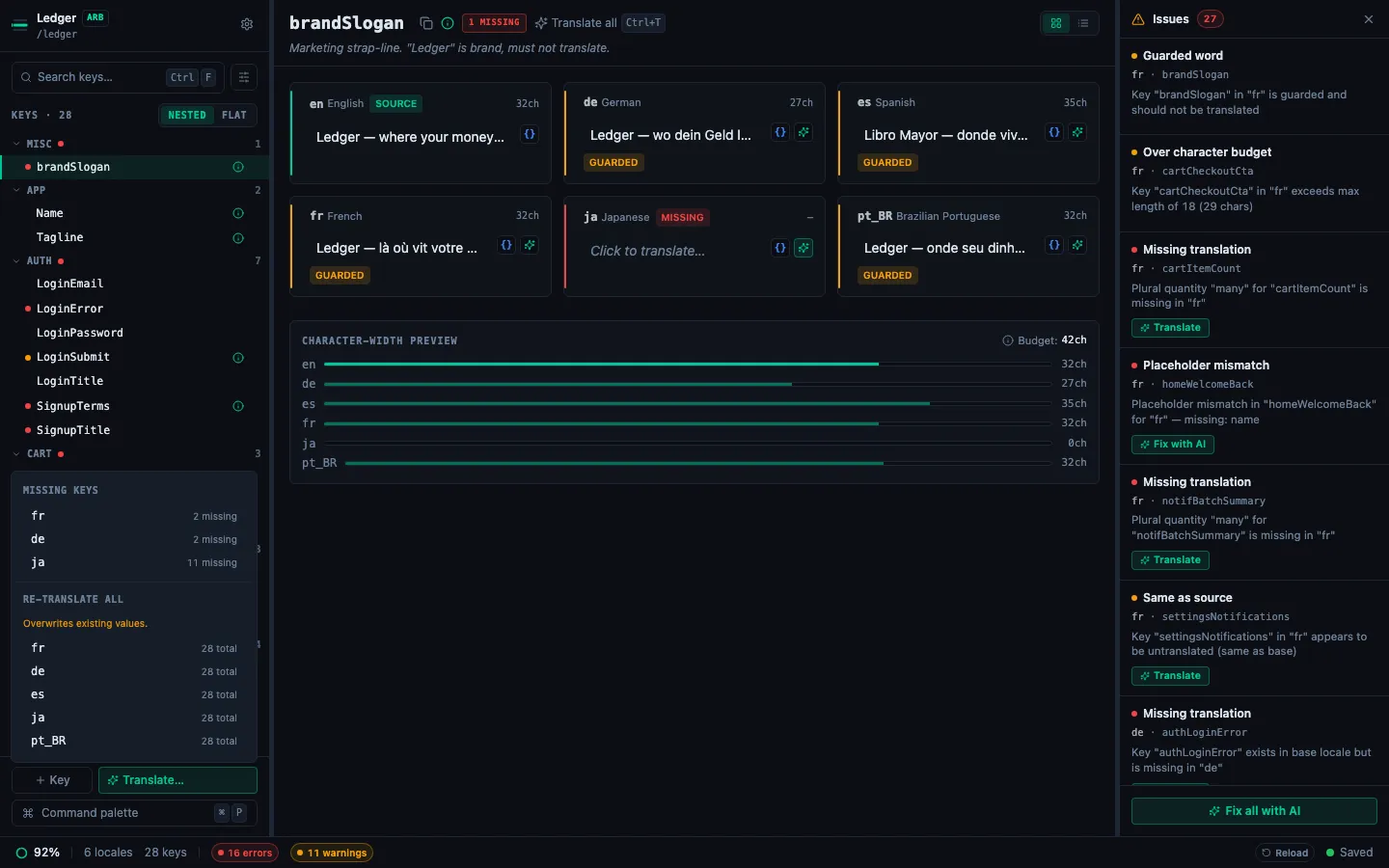
Use the per-cell AI translate button to translate a single key in any locale.
Individual key translation lets you translate one cell at a time using your configured AI provider. It's the right tool when you want to re-translate a specific key, check a translation for a critical string, or translate just a few new keys without running a full bulk pass.
Requirements
You need an AI provider configured in Project Settings → AI before the ✨ button appears. See Set Up AI Translation in 5 Minutes.
How to translate a single key
-
In the List View detail pane, hover over a cell in a target locale column.
-
A ✨ sparkle button appears on cells that are Missing (no translation) or Same (identical to base locale). These are the most actionable candidates.
-
Click ✨. The cell shows a loading indicator.
-
The translation appears and is saved immediately.
One at a time
Only one cell can be translating at any given moment. While a translation is in progress, ✨ buttons on other cells are disabled. Wait for the current translation to complete (or fail) before starting another.
Error handling
"Go to Settings" prompt: your API key is missing, expired, or invalid. Click the prompt to open Project Settings, or press ⌘, and re-enter your key.
Banner with error message: a network or API error occurred. The error message appears in a dismissible banner. Try clicking ✨ again — transient errors usually resolve on retry.
Empty result written: the model returned a response that couldn't be parsed as a translation. This is rare. Try a different model or rephrase the string to avoid edge-case model behavior.
Supported cells
The ✨ button only appears on:
- Missing cells (key not present in this locale)
- Same cells (translation matches the base locale — likely untranslated)
It does not appear on cells with existing translations — to re-translate those, clear the cell first or use the ↻ all bulk option.