How to Use Locale Presets
Browse and apply built-in locale presets when adding a new language — including regional cultural context for AI translation.
Locale presets are built-in definitions for 70+ languages and regions. Each preset includes the correct BCP 47 locale code, a display name, and optional cultural context notes that improve AI translation for that locale.
Accessing presets
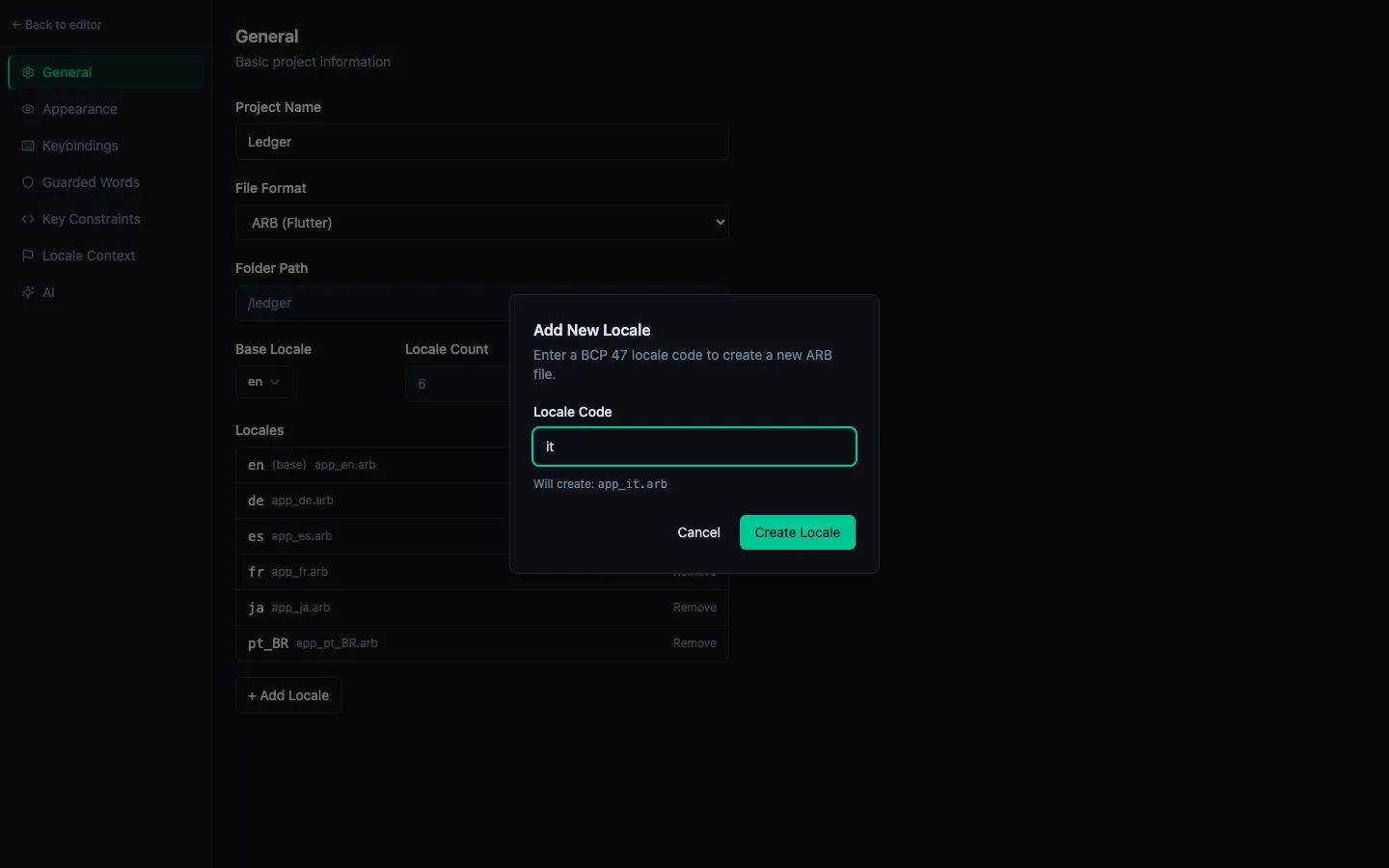
Presets appear automatically when you click + Add Locale. The search sheet shows all available presets, searchable by:
- Language name ("Spanish", "Chinese")
- Region ("Brazil", "Taiwan")
- Locale code ("es", "zh-TW")
What a preset includes
Each preset provides:
| Field | Example |
|---|---|
| Locale code | pt-BR |
| Display name | Brazilian Portuguese |
| Cultural context | "Use informal 'você' form. Prefer Brazilian Portuguese idioms." |
The cultural context is automatically added to your per-locale AI settings when you add the locale. You can edit or remove it at any time in Project Settings → AI → Locale Context.
Common presets
| Preset | Code | Notes |
|---|---|---|
| English (US) | en | Default base locale |
| Spanish | es | Covers most of Latin America |
| Spanish (Spain) | es-ES | Distinct from Latin American Spanish |
| French | fr | |
| German | de | |
| Japanese | ja | Includes polite form guidance |
| Korean | ko | |
| Chinese (Simplified) | zh | Mainland China |
| Chinese (Traditional) | zh-TW | Taiwan |
| Portuguese (Brazil) | pt-BR | |
| Arabic | ar | RTL; requires full plural category set |
| Ukrainian | uk | Requires one, few, other plurals |
| Italian | it | |
| Dutch | nl |
Custom locales
If your locale isn't in the preset list, type the BCP 47 code directly in the search field (e.g. fil for Filipino, sw for Swahili) and press Enter. The locale is added without preset cultural context — you can add your own notes manually in Project Settings.