How to Translate with a Local LLM (Ollama, LM Studio, Jan)
Run AI translation entirely on your machine. Configure Local LLM (OpenAI-compatible) in Settings → AI and point StringLane at any local OpenAI-compatible runner.
StringLane's Local LLM (OpenAI-compatible) provider lets you translate without sending data to any cloud. It works with any inference runner that exposes an OpenAI-compatible HTTP API — Ollama, LM Studio, Jan, llama.cpp, vLLM.
Why local
- No API key, no per-token billing.
- No network egress — your strings stay on the machine.
- No rate limits beyond your hardware.
- Smaller models (Llama 3.2, Qwen 2.5, Mistral 7B) are good enough for translation tasks when paired with StringLane's locale-aware prompts.
Step 1: Run a local model server
Pick whichever runner you already have:
| Runner | Default base URL | How to install |
|---|---|---|
| Ollama | http://localhost:11434/v1 | brew install ollama && ollama pull llama3.2 |
| LM Studio | http://localhost:1234/v1 | Download the desktop app, load a model, click "Start Server" |
| Jan | http://localhost:1337/v1 | Download the desktop app, enable the "Local API Server" |
| llama.cpp | varies | ./llama-server -m model.gguf --port 8080 |
Start the server, pull/load a model, and confirm you can curl the /v1/models endpoint.
Step 2: Configure StringLane
Open Settings → AI (or run "Open Settings" from the Command Palette).
- Provider — pick Local LLM (OpenAI-compatible).
- Base URL — enter your runner's URL. Default is
http://localhost:11434/v1(Ollama). Adjust per the table above. - Model — type the exact model name your runner has loaded (e.g.
llama3.2,qwen2.5:14b,mistral). - No API key field appears — local runners typically don't authenticate.
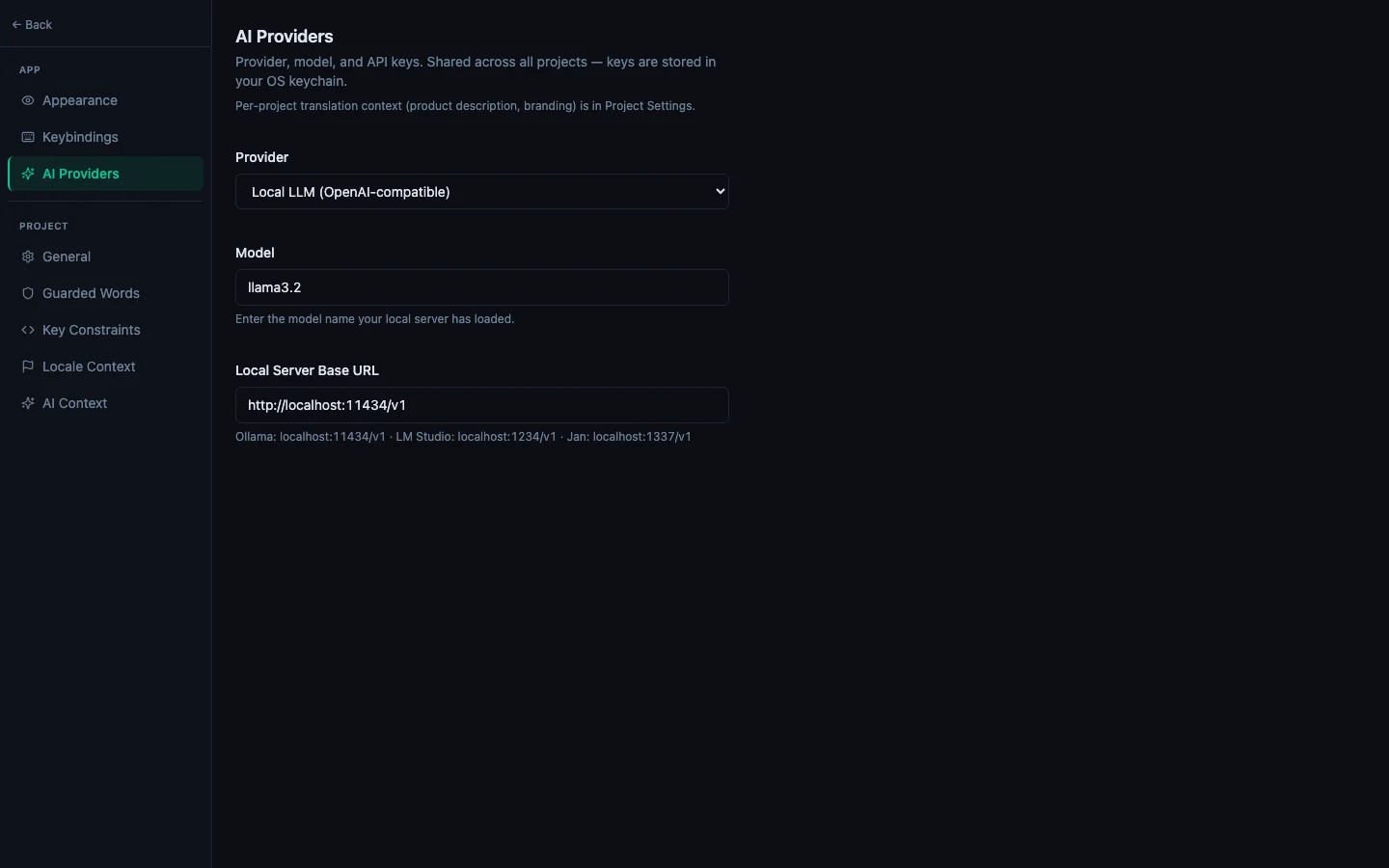
Save and close Settings.
Step 3: Translate
Use the same flows you would with a cloud provider:
- Per-cell ✨ button on a Missing or Same row.
- ⌘T — translate the active key into every non-base locale.
- Translate all missing with AI from the Command Palette — sweeps every gap across every locale.
- Fix all with AI in the Issues Panel — repairs ICU and placeholder errors in place.
StringLane's prompts already include CLDR plural rules, locale formality / honorifics, format-specific placeholder dialects, and a glossary of recurring terms — those are sent regardless of provider, so a local model gets the same context a cloud model does.
What to expect
- Latency. A local 7B model on a Mac M-series will produce a translation in 1–3 seconds per key. Bulk operations are sequential per locale, parallel per chunk; expect ~30 seconds per 50 keys on a single locale.
- Quality. Larger models (14B+) match cloud quality on common locale pairs. Smaller models (3B–7B) are adequate for short UI strings; quality drops on complex ICU plurals or rare locale pairs.
- Memory. Plan for the runner to hold the model in VRAM/unified memory while StringLane is open. Quit the runner when you're done if you need the RAM back.
Troubleshooting
- "Could not reach the model server" error — confirm the runner is up (
curl http://localhost:11434/v1/models) and the URL in Settings exactly matches. - Translation comes back as a code block or refusal — the model is misinterpreting the system prompt. Try a different model; instruction-tuned
*-instructvariants behave best. - Empty translations — the runner returned non-JSON. StringLane's parser logs a
TranslationParseErrorand skips that key. Check the runner's console for the raw response.
Related
- Set Up AI Translation in 5 Minutes — cloud providers (BYOK).
- How to Translate All Missing Cells at Once — bulk flow that works with any provider.
- How to Use the Issues Panel — Fix-with-AI also runs against your configured provider.