How to Open a Localization Project
Three ways to open a localization folder in StringLane, what auto-detection covers, and how multi-module Android + namespaced i18next projects load.
StringLane reads directly from your project folder — no import step, no proprietary configuration file, no central index to maintain.
Three ways to open a project
Drag and drop. Drag any folder (or even an individual localization file) from Finder, Explorer, or your file manager onto the StringLane window. The Drop Zone overlay confirms the gesture, then StringLane scans the folder recursively for supported localization files.
⌘O / Ctrl+O. Press the shortcut, or choose File → Open Folder from the menu, then navigate to your project root or localization subdirectory and click Open.
Command Palette. Press ⌘P (Ctrl+P on Windows/Linux) and run Open folder….
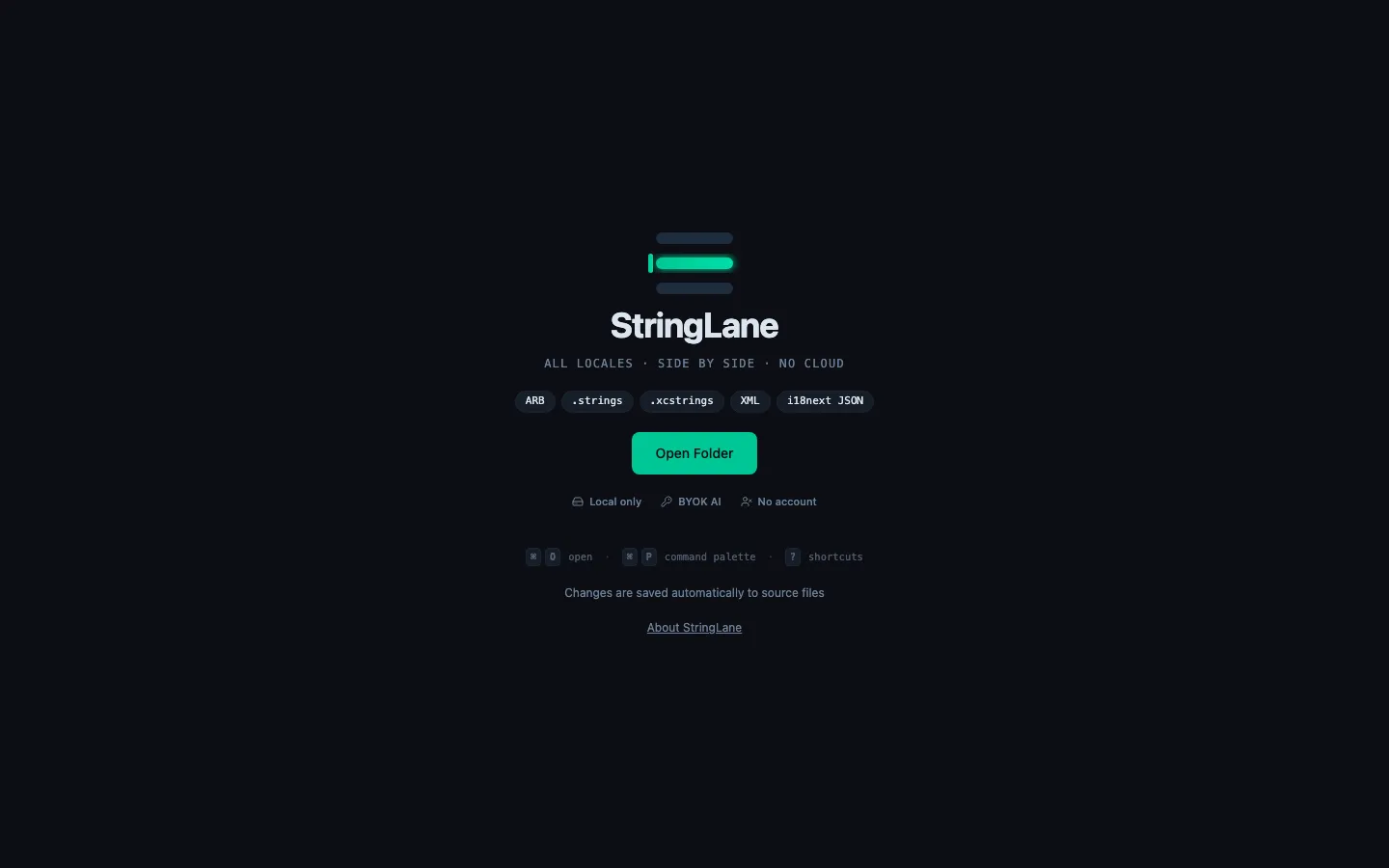
What StringLane auto-detects
StringLane recognises five supported formats and four project ecosystems.
Supported formats
- Flutter ARB —
.arbfiles (e.g.app_en.arb,intl_en.arb). - iOS
.strings— Apple.stringsfiles inside.lprojdirectories. Quoted ("key" = "value";) and bare-identifier (key = "value";) syntax both parse. - Apple String Catalog —
.xcstringsfiles (Xcode 15+). - Android XML —
strings.xmlfiles insideres/values*/directories. - i18next JSON — flat layout (
en.json,de.json) and namespaced layout (<lang>/<ns>.json).
Project-type detection
When you open a folder, StringLane looks for marker files to classify the ecosystem and find the most likely locale-file path automatically:
| Ecosystem | Marker file(s) |
|---|---|
| Flutter | pubspec.yaml |
| iOS / Apple | Package.swift, *.xcodeproj, *.xcworkspace, Project.swift, project.yml, Podfile, Cartfile |
| Android | build.gradle{,.kts}, settings.gradle{,.kts}, AndroidManifest.xml |
| Web / Node | package.json |
Each ecosystem has its own catalog of conventional locale-file paths drawn from real-world OSS projects — Apple SPM packages, Tuist workspaces, React Native iOS, Compose Multiplatform, Astro / Nuxt / SvelteKit / Remix flat layouts, and more. The recursive folder fallback descends up to four levels deep, skipping Pods, build, node_modules, and similar build artefacts as a safety net for novel layouts.
Multi-module Android, as one virtual project
Open a Gradle workspace where strings.xml lives in multiple modules and StringLane merges every module into a single editable project. Keys are prefixed with the module path (slashes converted to dots) — so feature/foryou/src/main/res/values/strings.xml shows up as feature.foryou.<key>. The nested sidebar view groups them automatically: feature → foryou → welcome_title. Edits save back to the originating module's values-<lang>/strings.xml file with the prefix stripped. Adding a locale mirrors the most-localized existing locale's module set so the new language appears wherever the others do.
iOS multi-target projects, as one virtual project
iOS workspaces where each target ships its own localization cluster — a main app, a shared module, and a watch extension each with their own .lproj/*.strings folders, or multiple Localizable.xcstrings files in sibling target directories — load as a single editable project. StringLane walks the workspace, collects every .lproj cluster and every .xcstrings file (skipping .xcodeproj, .xcworkspace, and .xcassets bundles), and prefixes each key with its origin folder so namespaces stay disjoint. For example, MyApp/Core/Assets/<lang>.lproj/Localizable.strings shows up as MyApp.Core.Assets.<key> and WatchApp/Core/Assets/<lang>.lproj/Localizable.strings as WatchApp.Core.Assets.<key>. The nested sidebar view groups them automatically. Saves go back to each origin's own file in its native format — .strings writes per-locale (with companion .stringsdict for plurals), .xcstrings writes the whole locale set in one file — so mid-migration projects that mix both formats keep working. Non-standard filenames inside .lproj (e.g. SharedLocalizable.strings) are picked up too.
Namespaced i18next projects
Folder layouts shaped like <root>/<lang>/<ns>.json — the next-i18next default used by Cal.com, Documenso, and Plane — load with every namespace merged per locale. Keys are prefixed by namespace with : (e.g. common:greeting, auth:login_button) so they read the same way as t('common:greeting') in your runtime. Edits save back to the right <lang>/<ns>.json file. StringLane records format: i18next-json, path: <root>, layout: namespaced in stringlane.yaml on first open so subsequent opens are deterministic.
After the scan
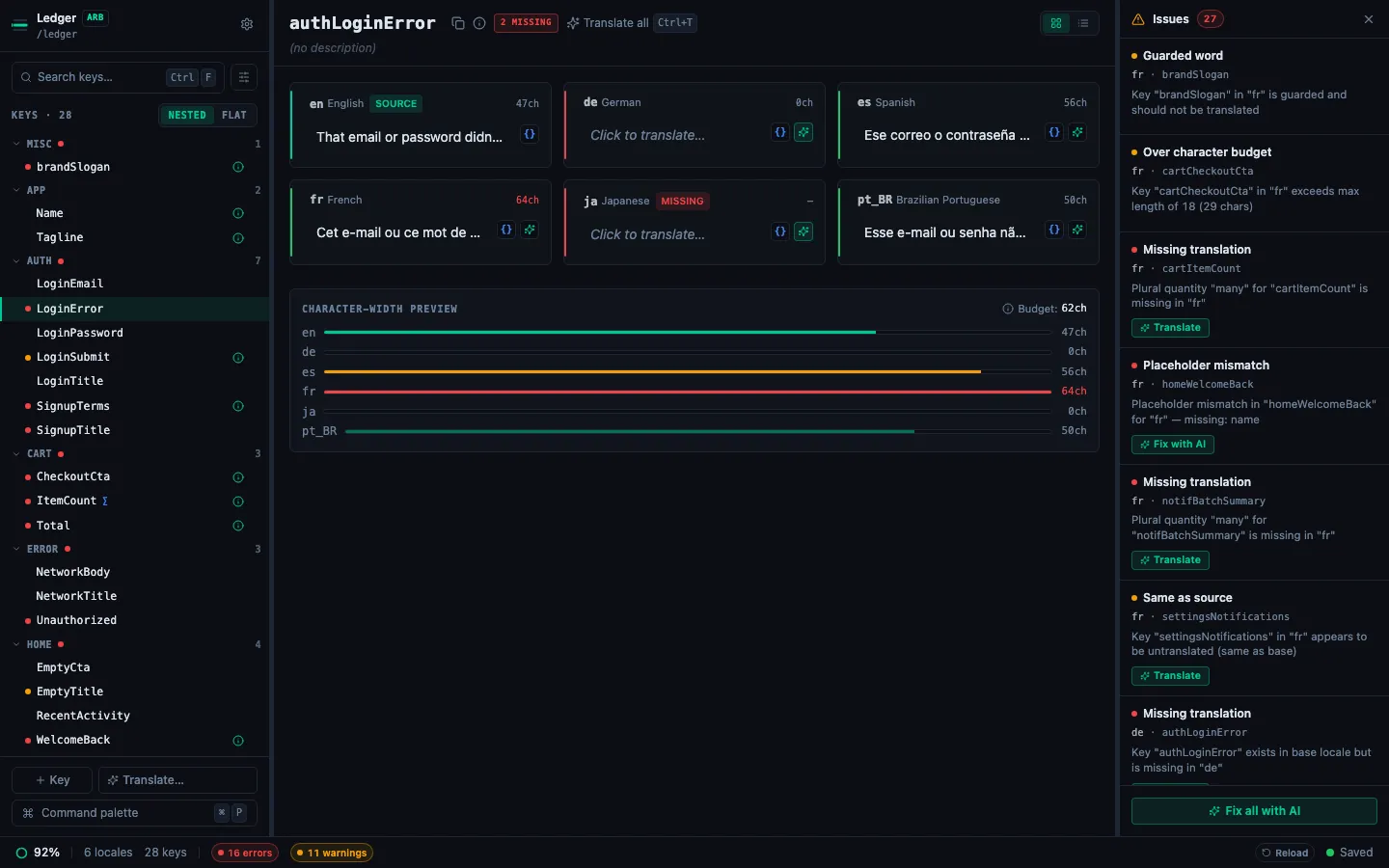
The unified editor loads with:
- Sidebar (left) — every key, grouped by namespace by default. Search, filter, and the Command Palette launcher live here.
- Detail pane (centre) — the active key plus every locale side-by-side, with the base locale pinned at the top.
- Status bar (bottom) — overall completion percentage, error and warning chips, save indicator, and the current Git branch.
Recent projects
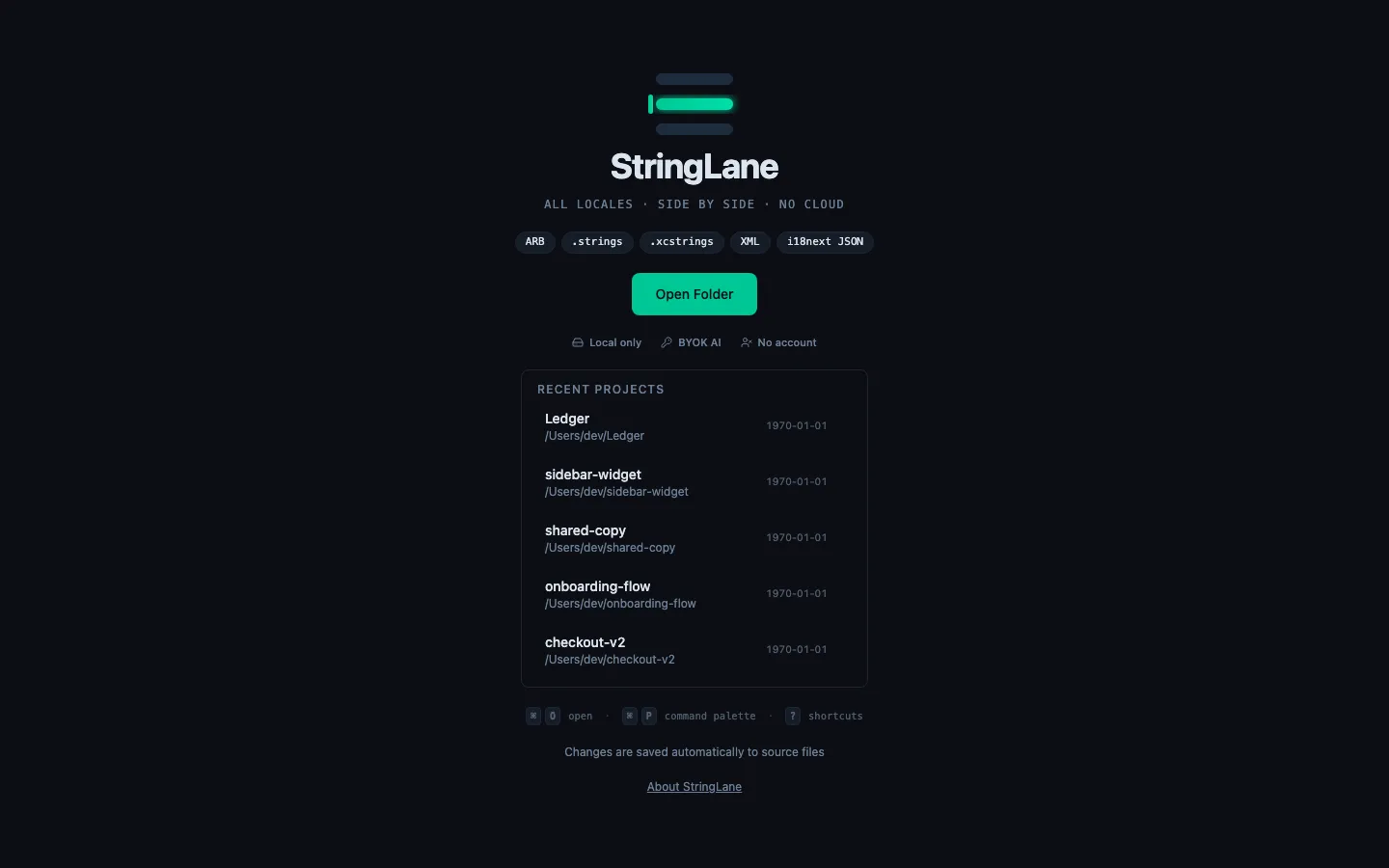
StringLane keeps the five most recently opened projects on the Welcome screen. Each row shows the project format, locale and key counts, completion percentage, and a relative "last opened" time so you can pick up where you left off in one click. Older entries roll off as you open new projects.
When auto-detection needs a nudge
If you open a folder that StringLane recognises as a project type but can't find locale files in any standard location, a typed recovery dialog names the ecosystem and opens a folder picker so you can point at the actual locale directory. Cancel the picker and the inline error explains exactly what was expected — for example, "no strings.xml found in any res/values/ folder".
Troubleshooting
No locales appear after opening a folder. Make sure the folder contains ARB, .strings, .xcstrings, XML, or JSON files. Try opening a subfolder (e.g. lib/l10n/ instead of the Flutter project root) — auto-detection will catch it on most layouts, but pointing directly at the locale folder always works.
Wrong format picked. Open Settings → Project → General and change the Format dropdown. StringLane will rescan with the chosen parser.
Only one locale appears. You have a single locale file. Use Add a Locale to create additional language columns from the 50+ built-in presets.