How to Bulk-Translate a Locale
Fill all missing translations in a locale with one click — with progress tracking and cancel support.
Bulk translation sends all missing (or all) keys in a locale to your AI provider sequentially. It's the fastest way to get a new locale from empty to complete.
Requirements
Configure an AI provider in Project Settings → AI first. See Set Up AI Translation in 5 Minutes.
Starting a bulk translation
In the per-key detail pane, each non-base locale's header has two buttons:
- ✨ N — translates the N keys that are currently Missing in this locale (leaves existing translations untouched)
- ↻ all — re-translates every key in this locale, overwriting all existing values
Click either button to open the bulk translate dialog.
Tip: prefer the Command Palette's Translate all missing with AI when you want to fill gaps across every non-base locale in one pass — see How to Translate All Missing Cells at Once. The locale-header buttons are the right tool for a single-locale focused pass.
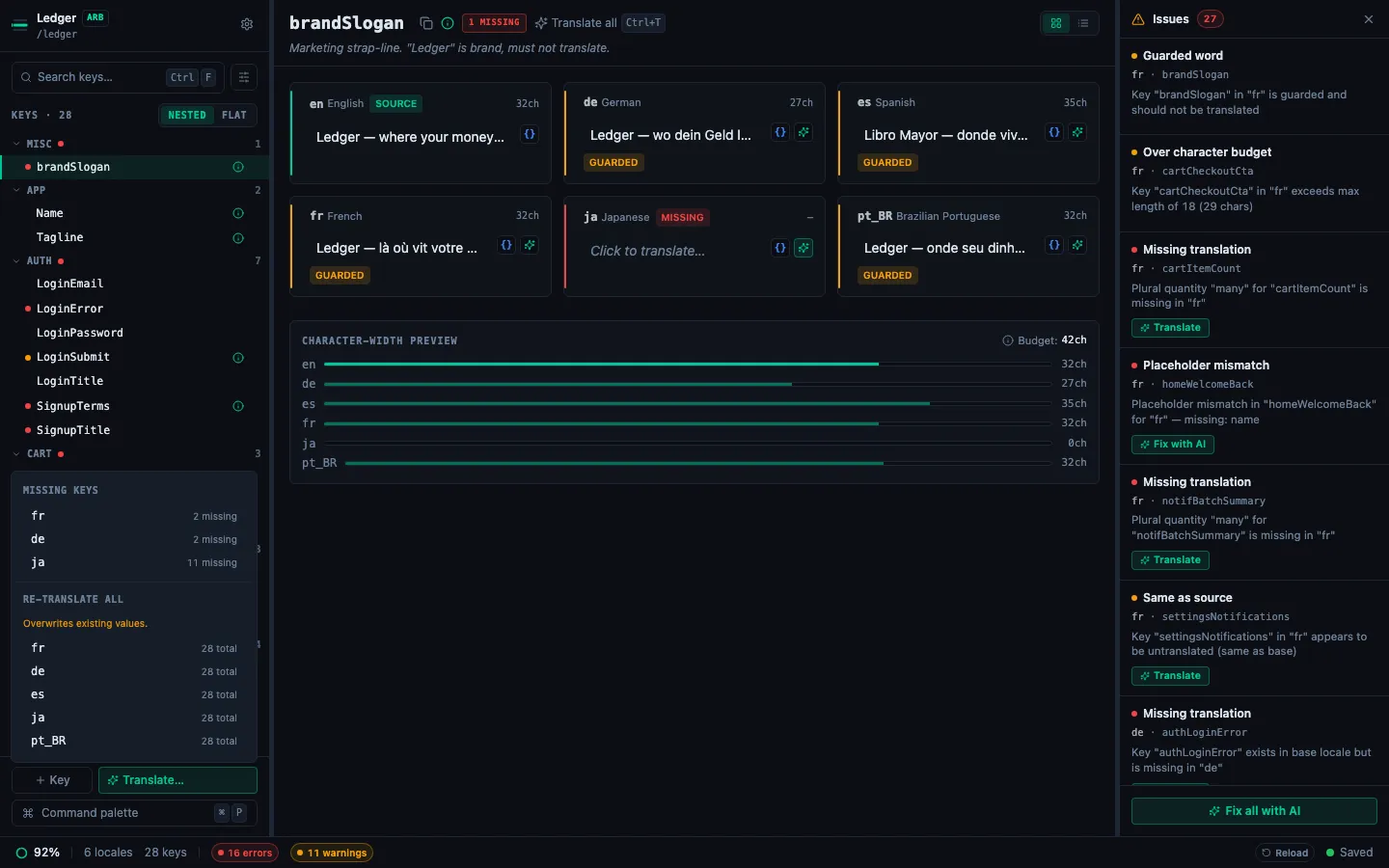
The bulk translate dialog
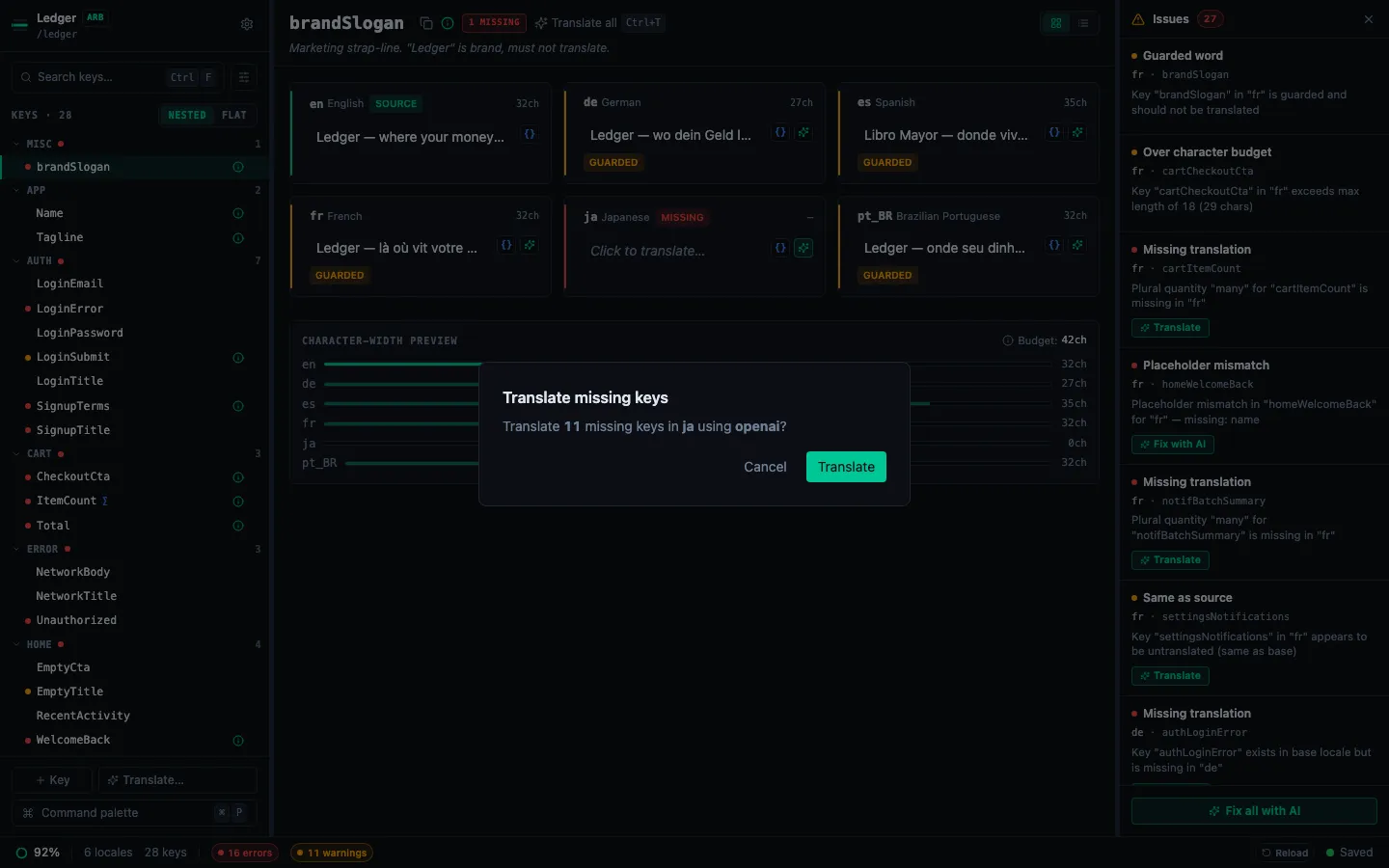
The dialog shows:
- The target locale and provider you're using
- The number of keys that will be translated
- A confirmation button to start
Click Translate to begin. A progress bar tracks the current key number.
Cancelling
Click Cancel at any time. The current in-flight translation finishes (it can't be interrupted), then the run stops. All translations completed before you cancelled are saved.
Results summary
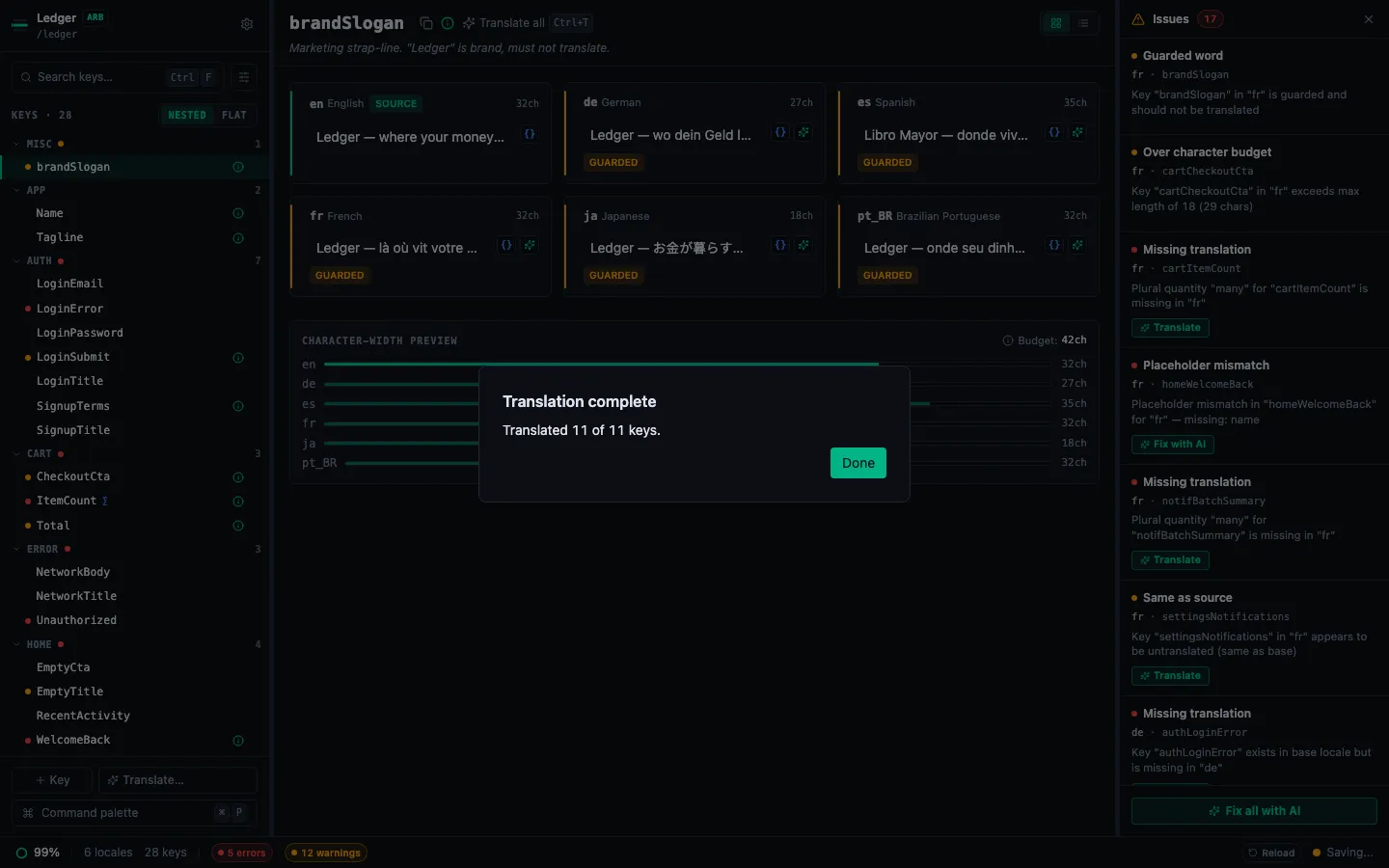
When the run completes (or is cancelled), a summary shows:
- How many keys were translated successfully
- How many failed (with the key names listed)
- Option to close or retry failed keys individually
Failed keys typically happen due to transient API errors. Retry them individually with ✨ or start another bulk pass — StringLane retries each failed key up to two times before marking it as failed.
Tips for best results
- Add product context first. Bulk runs use the same prompt as single-key translation. Better context = better results across all keys. See Configure Guarded Words and Product Context.
- Run ✨ N (missing only) on first pass. The ↻ all option is useful for refreshing translations after changing your product context or guarded words, but will overwrite any manual corrections you've made.
- Check for Param and ICU badges after the run. Bulk translation sometimes produces placeholder mismatches on strings with variables. Fix these manually or re-translate individual keys.